I did a full audit of app permissions on a fresh Windows 11 install after upgrading from Windows 10 last year, and the defaults were worse than I expected. The Weather app had location access. The Mail app had access to contacts and email (expected) but also to the microphone (less expected). Six apps I hadn’t opened in months had camera access listed as “allowed.” Windows 11 has a reasonably capable permission system — it just doesn’t tell you about it upfront, and the defaults lean heavily toward access-permitted.
Here’s the exact audit process and which settings actually matter.
Quick Answer:
- Windows 11’s app permission controls are in Settings → Privacy & security — there’s one global toggle and per-app toggles for each permission type
- The highest-risk permissions to audit are location, camera, microphone, and “Let apps access your contacts”
- Desktop (Win32) apps installed from outside the Microsoft Store bypass these controls — they get whatever they ask for at install time
What Windows 11’s Permission System Actually Controls
Before auditing anything, it helps to understand what the permission toggles in Settings do and don’t control.
Microsoft Store apps (UWP apps): These are fully sandboxed and respect the permission system in Settings → Privacy & security. Revoking camera access for a UWP app actually prevents it from accessing the camera at the OS level.
Desktop apps (Win32 apps): Chrome, Spotify, VLC, most professional software. These don’t go through the Windows permission sandbox. The camera, microphone, and location toggles in Settings apply to them only at a high level — there’s a global “Allow desktop apps to access your camera” toggle, but you can’t control individual desktop apps this way. You can toggle off the entire category, which blocks all desktop apps from that resource.
System services: Windows itself, including things like Windows Hello facial recognition and Cortana. These have separate controls scattered across different Settings sections.
This distinction matters because the bulk of privacy risk on most Windows machines comes from desktop apps, and the per-app control you get there is binary (allow all / deny all), not granular.
Step 1: The Privacy & Security Audit
Go to Settings → Privacy & security. This section has two parts: Windows permissions (telemetry, speech, inking data) and App permissions (camera, microphone, location, etc.).
Start with App permissions. Work through each category:
Location: Settings → Privacy & security → Location. Check “Let apps access your location” — if this is on, scroll down to see which apps have access. Weather, Maps, and news apps have legitimate reasons. A calculator app or a game having location access doesn’t. Toggle off any app you don’t expect to use location. Also check “Let desktop apps access your location” — this is the global kill switch for desktop apps.
Camera: Settings → Privacy & security → Camera. Same structure. Check every app in the list. If you don’t use the camera built into an app, turn it off. Pay attention to communication apps (Teams, Zoom, Skype) — these legitimately need camera access, but check if they need it always-on or only while in use. Windows 11 grants “while in use” by default for most apps.
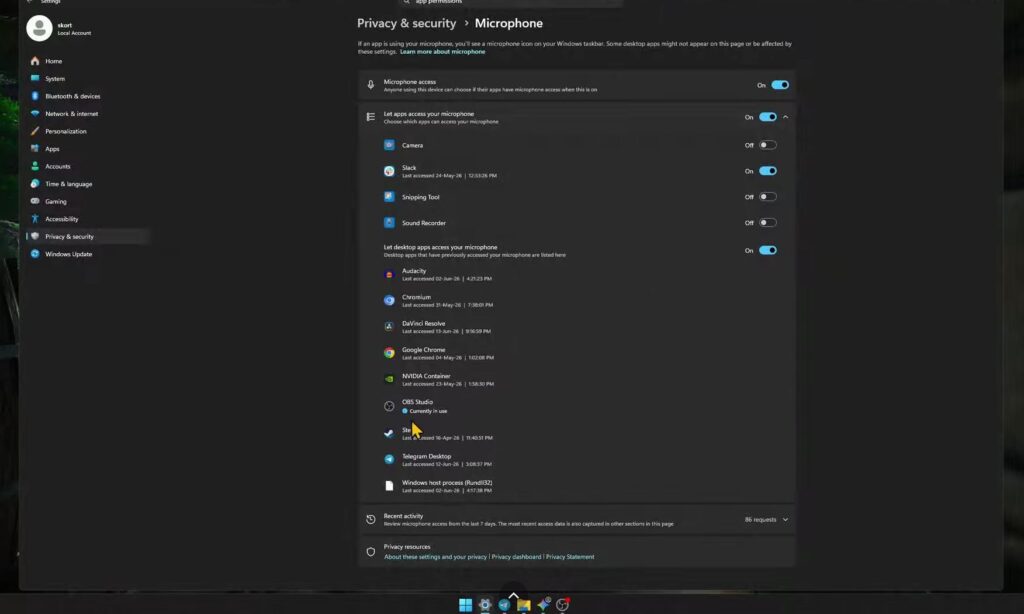
Microphone: Settings → Privacy & security → Microphone. This is the one most people overlook. Check every app listed. “Microsoft News” having microphone access is worth questioning. Game apps from the Store sometimes request microphone for voice chat — disable for games you play solo.
Contacts: Settings → Privacy & security → Contacts. Most people don’t expect desktop apps to have contact list access, but it’s often granted. Any app that doesn’t explicitly need to see your contacts should be denied here.
Calendar: Settings → Privacy & security → Calendar. Your calendar data contains a lot of sensitive information — meeting titles, attendees, locations. Review carefully.
Email: Settings → Privacy & security → Email. Apps with email access can read your messages and send on your behalf. Only email clients should have this.
(Tested on: Windows 11 23H2 | Settings version 11.2403.x)
[PRO TIP] Windows 11 shows “Last accessed” timestamps next to app permissions in some categories. This tells you when an app last used that permission. If an app you haven’t opened in six months shows a recent “last accessed” timestamp for the microphone, something is running it in the background. That’s worth investigating separately from just revoking the permission.
Step 2: Reduce Windows Telemetry
Beyond app permissions, Windows 11 itself collects diagnostic data by default. This is separate from the app permission system and controlled through different settings.
Diagnostic data: Settings → Privacy & security → Diagnostics & feedback → Diagnostic data → set to “Required diagnostic data” (minimum) instead of “Optional diagnostic data.” Required sends basic device health information. Optional sends detailed usage data including browsing habits and app usage patterns.
Inking and typing: Settings → Privacy & security → Inking & typing personalization → toggle off “Custom inking and typing dictionary.” This stops Windows from building a personal word model based on what you type.
Activity history: Settings → Privacy & security → Activity history → uncheck “Store my activity history on this device.” This is the data behind the Timeline feature. If you don’t use Timeline (most people don’t), there’s no reason to store it.
Search history: Settings → Privacy & security → Search permissions → History → “Search history on this device” — toggle off. Also review “SafeSearch” and cloud content search settings here.
[COMMON TRAP] There are two separate “activity history” concepts in Windows 11: the local one under Privacy & security, and the Microsoft account cloud activity history managed at account.microsoft.com/privacy. Turning off local storage doesn’t automatically clear the cloud history or stop future cloud sync if you’re signed into a Microsoft account. You need to manage both.
Step 3: Lock Down Location More Aggressively
The standard location toggle is binary, but there are additional controls worth setting.
Settings → Privacy & security → Location → “Location services” toggle. This is the master switch — turning it off blocks location for all apps and services including Windows itself.
If you want location to work for some apps but not others, leave it on and use per-app toggles. But also check: Settings → Privacy & security → Location → “Let Windows and apps request your location” → scroll down to “Windows permissions” and find “Windows location service.” This controls whether the system-level location service runs at all, separate from individual app access.
For laptops that travel: Settings → Privacy & security → Location → “Default location.” This is a fallback location Windows uses when precise location isn’t available. If you’ve ever used the “Set your default location” option, it stores an address here. Delete it if you don’t want a stored location on the device.
Step 4: Control What Desktop Apps Can Access
Since UWP app permissions don’t cover desktop apps granularly, the main tool for desktop app privacy is reviewing what you’ve installed and auditing their own permission requests.
For camera and microphone specifically, Windows 11 shows a camera/microphone indicator in the system tray when any app is actively using these. If you see the indicator when you’re not on a call or recording anything, open Task Manager → Details tab and sort by CPU to find what’s active.
For location, there’s no real-time indicator for desktop apps the way there is on smartphones. The only way to audit which desktop apps have accessed location is through Settings → Privacy & security → Location → “Recent activity” (if shown) or by checking each app’s own settings.
Firewall as a permission layer: Windows Defender Firewall gives you outbound connection control per application. While it doesn’t control camera/microphone/location, it does control which apps can reach the internet. Settings → Windows Security → Firewall & network protection → Advanced settings → Outbound Rules. This is overkill for casual users but powerful if you want to stop a specific app from sending any data outward.
Step 5: Review App Access to Your Microsoft Account
If you’re signed into Windows 11 with a Microsoft account, apps can request access to your Microsoft account data — calendar, contacts, OneDrive files. This is separate from the local permission system.
Manage these at account.microsoft.com → Privacy → App access. You’ll see a list of third-party apps that have been granted access to your Microsoft account. Remove anything you don’t recognize or no longer use. Unlike the local Settings controls, this list shows actual third-party OAuth grants.
[COMMON TRAP] Apps granted Microsoft account access can read your cloud data even when you’re not actively using the app, and even from other devices. This is a different attack surface than local permissions — revoking camera access in Windows Settings doesn’t affect Microsoft account data access.
What You Can’t Control Through Settings
A few things that look like they should be in the permission system but aren’t:
Win32 app keylogging: There’s no OS-level permission to prevent a desktop app from reading keystrokes. This is a fundamental limitation of the Windows architecture for traditional apps. The only defense is not installing untrusted software.
Screen capture: Windows 11 introduced a screen capture protection API that apps can use to prevent their content from being captured. But there’s no reverse control — you can’t prevent apps from capturing your screen. Any desktop app with a window open can technically read screen contents through various means.
Network traffic from apps: The firewall gives you on/off control per app for network access, but not content-level control. A desktop app you’ve allowed to reach the internet can send whatever data it chooses within that connection.
Sensor access for desktop apps: Accelerometer, gyroscope, and ambient light sensor data is exposed to UWP apps through the permission system but not granularly controllable for desktop apps.
The Specific Settings Worth Changing Right Now
If you want a minimal effective audit without going through everything above, these five changes have the most impact on most machines:
Settings → Privacy & security → General → turn off all four toggles (advertising ID, language list access, content suggestions, suggested settings).
Settings → Privacy & security → Diagnostics & feedback → set to “Required diagnostic data.”
Settings → Privacy & security → Activity history → uncheck “Store my activity history.”
Settings → Privacy & security → Camera → review each app and revoke anything unexpected.
Settings → Privacy & security → Microphone → review each app and revoke anything unexpected.
These five changes take about three minutes and address the most commonly overlooked defaults.
Troubleshooting
An app stopped working after I revoked permissions
Most apps handle permission denial gracefully by showing a prompt asking you to re-enable. If an app crashes silently after a permission change, go back to Settings → Privacy & security → [the permission you changed] → re-enable it for that app, then relaunch the app. Some older Store apps don’t handle mid-session permission changes well — they need to be relaunched after any permission toggle.
I can’t find a specific app in the permission list
Desktop apps (Win32) sometimes don’t appear individually in the permission lists. Check whether the app is a Store app (Settings → Apps → Installed apps → look for “Microsoft Store” in the source column). If it’s a Win32 app, the per-app toggle won’t exist — only the global “Let desktop apps access [resource]” toggle applies.
The “last accessed” timestamp is very recent for an app I haven’t opened
This indicates background activity. Check Task Manager → Details for a running process from that app. If it’s running, end the task and check its startup settings: Settings → Apps → Startup — disable it from starting automatically. If the issue persists, the app may have a Windows service — open services.msc and look for a related service.
FAQ
Do these permission settings sync across devices if I use a Microsoft account? No. App permission settings are local to each device. If you have Windows 11 on two machines, you need to audit each one separately.
Does revoking permissions affect apps that are currently running? For UWP apps, the change takes effect immediately. If a video call app loses camera permission while a call is active, it loses camera access mid-call. For desktop apps, the behavior depends on the app — some check permissions on each access attempt, others cache the permission state at startup.
Can Microsoft apps bypass these permission settings? System components like Windows Hello, Cortana, and Windows Search have elevated access that bypasses some of the app permission controls. They have their own settings pages under Privacy & security rather than appearing in the per-app permission lists.
How is this different from what antivirus software does? Antivirus software monitors for malicious behavior — files being modified, suspicious network connections, known malware signatures. Permission settings control legitimate app access to specific resources. They’re complementary, not overlapping. An app that’s not malware but accesses your microphone unnecessarily won’t be flagged by antivirus — you’d catch it through permission auditing.
Should I also review browser permissions? Yes — browser permissions (camera, microphone, location granted to websites) are separate from Windows app permissions and managed within each browser’s settings. Chrome: Settings → Privacy and security → Site settings. Edge: Settings → Cookies and site permissions. These are independent of what you set in Windows. For a broader look at protecting yourself online beyond just permissions, the guide to protecting your privacy online in 2026 covers the full picture including browser-level and network-level privacy settings.
Conclusion
Windows 11’s permission system is functional but not self-explanatory. The audit takes about 15 minutes the first time — working through location, camera, microphone, contacts, calendar, and email in Settings → Privacy & security, then reducing diagnostic data collection. After that, the main ongoing task is checking new app installs before they quietly accumulate permissions you never intended to grant. The biggest gap remains desktop apps, where per-app granularity doesn’t exist — for those, the firewall and the decision of what you install in the first place are your main controls.
