
Both Microsoft Edge and Google Chrome have spent the last two years adding AI features that most people didn’t ask for, can’t easily remove, and that run background processes even when you’re not using them. Edge’s Copilot sidebar, Microsoft Shopping, the “Discover” feed, and the Bing AI chat button. Chrome’s “Help me write,” AI tab organizer, the Gemini sidebar, and SGE (Search Generative Experience) insertions into search results. Some of these are toggleable in settings. Others require Group Policy, registry edits, or browser flags to actually silence.
This guide covers what’s removable through normal settings, what requires the nuclear approach, and which features quietly respawn after browser updates.
Quick Answer:
- Most Edge AI features can be disabled through Edge’s settings pages, but Copilot and the sidebar require a registry key or Group Policy on Windows to stay off permanently
- Chrome’s AI features are mostly disabled through
chrome://flagsand settings, with the exception of SGE in search results, which requires a flag or a different search engine - Both browsers respawn some features after major version updates — check after each update
Microsoft Edge: The Full Removal
Edge is the more aggressive of the two when it comes to AI feature injection. Microsoft treats Copilot as a system-level feature on Windows 11, which means some of Edge’s AI components are tied to the OS rather than the browser alone.
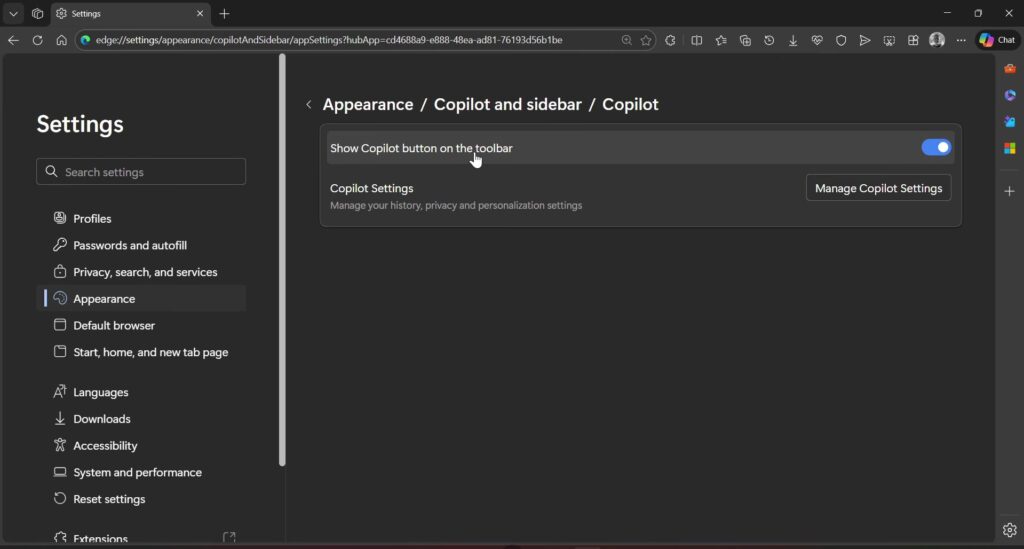
Step 1: Disable the Copilot Sidebar
Edge Settings → Sidebar → toggle off “Show Copilot” and “Always show sidebar”.
This removes the Copilot button from the toolbar and collapses the sidebar. However, on some Windows 11 builds with Copilot enabled at the system level, this toggle resets after updates. The permanent fix is a registry key:
Open Registry Editor (Win+R → regedit) → navigate to:
HKEY_LOCAL_MACHINE\SOFTWARE\Policies\Microsoft\Edge
If the Edge key doesn’t exist under Microsoft, right-click Microsoft → New → Key → name it Edge.
Inside the Edge key, right-click → New → DWORD (32-bit) Value → name it HubsSidebarEnabled → set value to 0.
Restart Edge. The sidebar is now policy-disabled and won’t respawn after updates.
[PRO TIP] The
HKEY_LOCAL_MACHINE\SOFTWARE\Policies\Microsoft\Edgepath is the Group Policy registry path for Edge. Any key you create here acts as a managed policy that overrides user settings and survives updates. This is the same mechanism IT admins use to lock down browser configurations in enterprise environments.
Step 2: Disable Microsoft Shopping and Coupons
Edge Settings → Privacy, search, and services → Services → toggle off “Save time and money with Shopping in Microsoft Edge”.
Also toggle off “Get notifications of related things you can do on the web” in the same section — this disables the “recommended” content injections on retail pages.
Step 3: Turn Off the “Discover” / News Feed on New Tab
Edge’s new tab page shows a news feed powered by Microsoft Start. Click the settings gear on the new tab page → Content → select “Focused” (minimal) or “Custom” → turn off all content feeds → set Background to a solid color.
For a fully blank new tab: install the “New Tab Redirect” extension and point it to about:blank. This is the only reliable way to get a completely clean new tab without the feed respawning.
Step 4: Disable Edge’s AI Writing Assistant (“Help me write” / Compose)
Edge Settings → Privacy, search, and services → Services → toggle off “Use AI to help me write better on the web” (sometimes labeled “Compose”).
Via registry for permanent enforcement:
HKEY_LOCAL_MACHINE\SOFTWARE\Policies\Microsoft\Edge
Value: ComposeInlineEnabled = 0 (DWORD)
Step 5: Disable Bing Search in the Address Bar
Edge Settings → Privacy, search, and services → Address bar and search → Search engine → change from Bing to your preferred search engine (Google, DuckDuckGo, etc.).
Also toggle off “Show me search and site suggestions using my typed characters” to prevent real-time Bing queries as you type.
Step 6: Disable Edge’s “Personalization” Data Collection
Edge Settings → Privacy, search, and services → Personalization & advertising → toggle off “Allow Microsoft to use your browsing activity including history, usage, favorites, web content, and other browsing data to personalize Microsoft Edge and Microsoft services like ads, search, news, and other Microsoft products and services.”
This is the broadest data collection toggle in Edge and covers most of what feeds the AI personalization features.
(Tested on: Microsoft Edge 125.0.x | Windows 11 23H2)
[COMMON TRAP] Edge on Windows 11 has some AI features that are controlled at the Windows level, not the browser level. If you see a Copilot button in the taskbar and it opens in Edge, disabling it in Edge settings alone won’t remove the taskbar button. For that: Settings → Personalization → Taskbar → toggle off Copilot.
Google Chrome: The Full Removal
Chrome’s AI feature rollout has been more gradual than Edge’s but is accelerating. As of Chrome 126+, the primary AI features are: “Help me write” (writing assistant in text fields), AI tab organizer, Gemini sidebar (in some regions), and SGE (AI Overview) in Google Search results.
Step 1: Disable “Help me write”
Chrome Settings → Privacy and security → AI features → toggle off “Help me write”.
If the toggle isn’t visible, go to chrome://flags → search for compose → set “Enable Compose” to Disabled → Relaunch.
Step 2: Disable AI Tab Organizer
Chrome Settings → Privacy and security → AI features → toggle off “Tab organizer”.
Via flags: chrome://flags → search tab organizer → set “Tab Organizer” to Disabled.
Step 3: Disable Lens / AI Image Search
Right-clicking an image in Chrome shows “Search image with Google Lens.” To remove this option:
chrome://flags → search lens → set “Enable Lens features in Chrome” to Disabled → Relaunch.
This also removes the Lens camera icon from the address bar search box.
Step 4: Disable SGE / AI Overview in Google Search
Google’s AI Overview (previously called Search Generative Experience) inserts AI-generated summaries at the top of search results. This runs on Google’s servers, not in Chrome itself, so there’s no Chrome flag that removes it.
Options:
- Add
&udm=14to Google search URLs — this forces “Web” mode without AI overviews. You can automate this with a custom search engine in Chrome: Settings → Search engine → Manage search engines → Add → set URL tohttps://www.google.com/search?q=%s&udm=14. - Use uBlock Origin — the cosmetic filter
google.com##div.ozOgIhides the AI Overview block. Add it in uBlock Origin → My Filters. - Switch the default search engine to one that doesn’t have AI-generated summaries: DuckDuckGo, Kagi, Brave Search.
Step 5: Disable the Gemini Sidebar (Where Available)
In regions where Chrome’s Gemini sidebar is deployed, it appears as an icon in the toolbar. Right-click the Gemini icon → Remove from toolbar. To prevent it from returning:
chrome://flags → search google gemini → set any Gemini-related flags to Disabled.
For Chrome on managed devices, the equivalent Group Policy key is ChromeOSGeminiEnabled = false.
Step 6: Disable Chrome’s AI-Powered History Search
Chrome 124+ introduced AI-powered search through browsing history (a local LLM that indexes your history). Settings → Privacy and security → AI features → toggle off “AI-powered history search” if available.
Via flags: chrome://flags → search history embeddings → set “History Embeddings” to Disabled.
[COMMON TRAP] Some Chrome AI features are A/B tested and only visible to a subset of users. If you don’t see a particular setting described here, you may not have that feature yet — or it may have been renamed in a recent update. Chrome’s flag names change between major versions; if a specific flag isn’t found, search for the feature name in
chrome://flagsusing general terms.
Keeping Changes Permanent After Browser Updates
Both browsers re-enable some features after major version updates. The registry/Group Policy approach for Edge is the most reliable because policy settings override user preferences even after updates. Chrome’s flag settings are more volatile — some flags get removed when the feature graduates from experimental status and the behavior changes to a settings toggle.
What to do after every major browser update:
For Edge: check edge://settings/ai and edge://settings/sidebarPrivacy. Microsoft periodically adds new AI toggles that weren’t there before, each defaulting to on.
For Chrome: check chrome://settings/aiPage (if available on your build) and re-verify the flags at chrome://flags that you’ve previously changed. Flags that say “Default” have been reset.
A practical approach is to keep a text file with the exact flag names and registry keys you’ve set — takes two minutes to re-verify after an update.
The Permanent Nuclear Option: Group Policy Templates
For both browsers, the cleanest long-term solution is deploying Group Policy templates that enforce your settings as managed policies. This requires the browser’s ADMX template files but works on Windows Home editions via the registry path described earlier for Edge.
For Chrome on Windows, the equivalent path is:
HKEY_LOCAL_MACHINE\SOFTWARE\Policies\Google\Chrome
Key examples:
GenAiDefaultSettings = 2(DWORD) — disables all GenAI features by policyHelpMeWriteSettings = 2(DWORD) — disables Help me write specificallyTabOrganizerSettings = 2(DWORD) — disables tab organizer
Value 2 means “disabled by admin policy” in Chrome’s policy schema. These persist through updates and can’t be overridden by the user through settings.
Privacy Considerations Beyond AI Features
Disabling the AI features addresses the most visible bloat, but both browsers also send telemetry data independently of the AI features. For a more complete privacy setup, pairing these changes with broader browser privacy settings is worth doing. The guide to protecting your privacy online in 2026 covers the browser-level and network-level settings that complement what’s described here.
FAQ
Will disabling these features make my browser faster? Marginally. The sidebar and background AI processes use some memory and CPU, but the impact on browsing speed for most pages is small. The bigger benefit is cleaner UI and reduced data sent to Microsoft/Google servers.
Can I disable Edge completely on Windows 11? Edge can’t be fully uninstalled on Windows 11 without workarounds that can break Windows Update and other OS features. The settings and registry approach described here is the practical alternative — it silences the AI features without touching the browser binary.
Does disabling Chrome’s AI features affect Google Search results? Only the SGE/AI Overview change affects search results. The other AI features (Help me write, tab organizer, Lens) operate within the browser, not on search result pages.
Will these changes break any websites? No. These are browser UI features, not rendering engine capabilities. Disabling them doesn’t affect how pages load, how JavaScript runs, or how web standards are implemented.
Do these settings apply to all profiles in the browser? Settings-level changes apply per profile. Registry/Group Policy changes (under HKLM\SOFTWARE\Policies) apply system-wide to all profiles and all users on the machine.
What about Firefox? Firefox has been significantly more conservative about AI feature integration. As of mid-2026, Firefox’s AI features are limited to opt-in experiments in Firefox Labs. No equivalent removal guide is needed for Firefox — the default installation has almost none of these features enabled.
Conclusion
Edge requires the most work to clean up, and the registry/policy approach is the only reliable method to keep the Copilot sidebar and AI writing features off after updates. Chrome’s AI features are mostly toggle-able through settings and flags, with SGE in search results being the exception that requires a URL parameter or cosmetic filter. Both browsers will continue adding AI features in subsequent updates — building the habit of checking AI settings after major version releases is the practical long-term approach rather than assuming a one-time cleanup is permanent.
