
I tested my VPN with what I thought was a clean setup — connected to a Netherlands server, verified the IP through whatismyip.com, saw a Dutch address. Everything looked fine. Then I ran a WebRTC leak test and saw my real home IP sitting right there alongside the VPN IP, clearly visible to any website that bothered to check. The VPN was working. The browser was bypassing it entirely through a completely different channel.
WebRTC leaks are the most common way VPNs fail in practice, and they’re invisible to the standard “check your IP” test that most VPN guides recommend. Here’s what WebRTC is, why it leaks, and how to actually stop it in every major browser.
Quick Answer:
- WebRTC is a browser API for real-time communication (video calls, voice chat, P2P file sharing) that discovers your real IP address using STUN servers — a process that bypasses the VPN tunnel
- Your real IP can be exposed to any website that runs a JavaScript WebRTC request, even while a VPN is connected
- The fix is disabling WebRTC in your browser or using a browser extension that forces WebRTC traffic through the VPN
What WebRTC Is and Why It Knows Your Real IP
WebRTC (Web Real-Time Communication) is an open standard built into every major browser that enables direct peer-to-peer connections for things like video calls, browser-based games, and file transfers. It’s what powers Google Meet, Discord in-browser, and similar services without requiring plugins.
To establish a direct connection between two peers, WebRTC needs to figure out each party’s actual network address — including addresses that might be hidden behind NAT (Network Address Translation), like your router’s private IP. It does this through a process called ICE (Interactive Connectivity Establishment), which uses STUN (Session Traversal Utilities for NAT) servers.
Here’s the problem: the STUN discovery process communicates directly with external servers using UDP, bypassing the TCP stack that most VPN tunnels operate on. When a website runs a WebRTC request (silently, via JavaScript), your browser contacts a STUN server, the STUN server reflects back your real public IP address, and that address is returned to the requesting website — all while your VPN happily routes everything else through its encrypted tunnel.
The VPN isn’t broken. It’s just that WebRTC carved out a side channel that the VPN isn’t covering.
How to Check If You’re Affected Right Now
Before fixing anything, verify whether you have a leak.
With your VPN connected, visit any of these test pages in your browser:
- browserleaks.com/webrtc — shows exactly which IPs WebRTC is exposing
- ipleak.net — combines WebRTC, DNS, and standard IP check in one page
- mullvad.net/en/check — Mullvad’s own leak detection tool, works without their VPN
What you’re looking for: if your real ISP IP address or your home network’s local IP (192.168.x.x or 10.x.x.x) appears under “WebRTC detected IP” or “Local IP address” while your VPN is connected, you have a leak.
A VPN IP appearing alongside a local private IP (like 192.168.1.x) is normal and not a leak — local network IPs don’t identify you. The dangerous case is your real public IP appearing there.
(Tested on: Chrome 126 | Firefox 127 | Edge 126 | Windows 11 23H2 | NordVPN, Mullvad, ProtonVPN across tests)
Fix 1: Disable WebRTC in Firefox
Firefox is the only major browser that exposes a direct toggle to disable WebRTC entirely without an extension.
Type about:config in the address bar → press Enter → accept the warning → search for:
media.peerconnection.enabled
Double-click it to toggle from true to false. WebRTC is now completely disabled in Firefox.
The trade-off: browser-based video calls and real-time features that use WebRTC (Google Meet, Discord in-browser, Zoom web app) won’t work until you re-enable this setting. For dedicated VPN privacy sessions, this is the cleanest solution. Toggle it back on when you need video calls.
[PRO TIP] Firefox also lets you limit WebRTC to VPN-bound interfaces without fully disabling it. Set
media.peerconnection.ice.default_address_onlytotrue— this forces WebRTC to use only the default network interface (your VPN’s virtual adapter), not the underlying physical adapter. This is less aggressive than disabling WebRTC entirely and preserves functionality while preventing the real IP from leaking.
Fix 2: Use an Extension in Chrome and Edge (No Native Toggle)
Chrome and Edge don’t expose a WebRTC toggle in their settings or flags without disabling it entirely at a level that breaks functionality. The practical fix for both is a browser extension.
Recommended extensions:
WebRTC Leak Prevent (Chrome Web Store) — lets you configure WebRTC’s IP handling policy. Set it to “Disable non-proxied UDP” to force WebRTC through the VPN tunnel rather than around it. This preserves WebRTC functionality for calls while preventing the IP leak.
uBlock Origin — primarily an ad blocker, but its “Prevent WebRTC from leaking local IP addresses” setting under Dashboard → Settings → Privacy is effective. If you’re already using uBlock Origin, this is the lowest-friction fix.
ExpressVPN, NordVPN, Mullvad browser extensions — these VPN providers’ own browser extensions include WebRTC leak protection built in. If your VPN provider has a browser extension, check its settings for a WebRTC leak protection toggle.
[COMMON TRAP] Chrome’s
chrome://flags/#disable-webrtcflag was removed in Chrome 48. Any guide telling you to use this flag is outdated — it no longer exists. The extension approach is the current solution for Chrome.
Fix 3: VPN Client-Level WebRTC Protection
Some VPN clients handle WebRTC leak prevention at the application level, intercepting WebRTC traffic before it reaches the browser’s UDP stack.
Mullvad VPN: Includes a “Block WebRTC” toggle in the desktop app settings → VPN Settings → Enable the WebRTC blocking. This works OS-wide, covering all browsers simultaneously.
ProtonVPN: The desktop client on Windows can block WebRTC through its kill switch implementation when set to “Permanent” kill switch mode. Check ProtonVPN → Settings → Kill Switch → Permanent.
ExpressVPN: The browser extension handles WebRTC protection per-browser; the desktop client alone doesn’t address WebRTC.
If your VPN provider offers client-level WebRTC blocking, it’s preferable to per-browser fixes because it covers all applications, not just the one browser where you’ve installed an extension.
Fix 4: Disable WebRTC via Chrome’s Command Line Flag
For Chrome power users who want to disable WebRTC without an extension:
Close Chrome → launch it with this command line argument:
chrome.exe --disable-features=WebRtcHideLocalIpsWithMdns
Or on macOS/Linux:
google-chrome --disable-features=WebRtcHideLocalIpsWithMdns
This disables Chrome’s mDNS (Multicast DNS) obfuscation for WebRTC — without mDNS, local IPs aren’t exposed through the obfuscation layer. Combined with the extension approach above, it reduces leak vectors. However, it doesn’t fully disable WebRTC — it only addresses the local IP portion.
For full WebRTC block in Chrome via command line:
chrome.exe --disable-webrtc
Note: --disable-webrtc disables all WebRTC functionality, breaking Google Meet, Discord, and similar services. Use it only for sessions where you need maximum leak prevention over browser functionality.
The DNS Leak Problem (Often Confused With WebRTC Leaks)
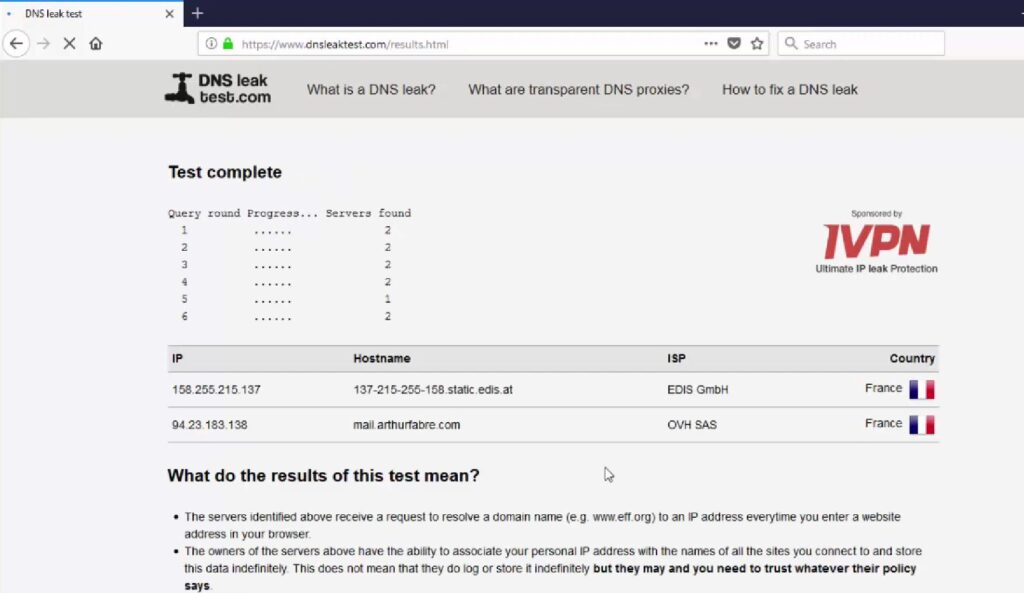
WebRTC leaks and DNS leaks are separate issues that are often conflated. A DNS leak is when your browser sends DNS queries (domain name lookups) to your ISP’s DNS server instead of your VPN’s DNS server, potentially exposing which websites you’re visiting.
The fix for DNS leaks is different from WebRTC:
In Windows: Settings → Network → DNS → set your DNS server to one provided by your VPN or a privacy-focused public DNS (such as Cloudflare’s 1.1.1.1 with DoH enabled in your browser).
In Chrome: Settings → Privacy and security → Security → Use secure DNS → set to your preferred provider.
Run a DNS leak test separately at dnsleaktest.com after fixing WebRTC — both can exist simultaneously and require independent solutions.
Which Browsers Are Most Vulnerable
Chrome: Highly vulnerable by default. No native WebRTC disable option without breaking functionality. Extension required.
Edge: Same as Chrome (Chromium-based). Same fix applies.
Firefox: Exposed by default, but fully controllable via about:config. Most fixable without extensions.
Safari: WebRTC implementation is more restricted than Chrome/Firefox. Apple limits which IP candidates WebRTC exposes, making WebRTC leaks less common in Safari. Not immune, but significantly less exposed than Chrome by default.
Brave: Has built-in WebRTC leak prevention. Settings → Privacy and Security → WebRTC IP Handling Policy → set to “Disable non-proxied UDP.” Brave is one of the few Chromium-based browsers with this control built in.
Opera, Vivaldi: Both are Chromium-based and share Chrome’s vulnerability. Use the extension approach.
Verifying the Fix Worked
After applying your chosen fix, run the WebRTC leak test again at browserleaks.com/webrtc.
Pass: Only your VPN IP appears, or no public IP appears at all under WebRTC. Local IPs (192.168.x.x) appearing is acceptable.
Fail: Your real ISP-assigned public IP appears under any WebRTC address category.
If the fix appears to have worked but you want to double-check across all browsers simultaneously, ipleak.net shows WebRTC, DNS, and standard IP in one page — run it in every browser you regularly use, since each browser needs the fix applied independently.
FAQ
Does this mean my VPN is useless? No. The VPN still encrypts all your normal browsing traffic and hides your IP from websites and your ISP through standard HTTP/HTTPS requests. WebRTC is a specific side channel that bypasses the VPN for peer-to-peer communication. Fixing the WebRTC leak makes your VPN protection complete for browser use.
Do VPN browser extensions leak WebRTC? Some do, some don’t. Browser extensions route HTTP/HTTPS traffic through the VPN but may not intercept WebRTC’s UDP traffic. Extensions from major providers (NordVPN, Mullvad, ProtonVPN) typically include WebRTC leak protection explicitly — check the extension’s settings rather than assuming it’s covered.
Is this a flaw in the VPN or the browser? Both, depending on perspective. WebRTC is working as designed — it needs real network addresses to establish peer connections. VPN applications could handle this by intercepting WebRTC traffic at the OS level, but most desktop clients don’t. Browsers could route WebRTC through the VPN interface, but they default to using all available network interfaces.
Does mobile VPN use have the same problem? VPN apps on Android and iOS typically route all traffic including UDP, which means WebRTC leaks are less common on mobile. However, if you’re using a browser on mobile and relying on the system VPN, test it — some mobile browser implementations behave differently.
Will disabling WebRTC break video calls? Google Meet, Zoom (web), Discord in-browser, and most video conferencing platforms use WebRTC. Disabling it fully breaks these services in that browser. The “non-proxied UDP” restriction (Firefox’s default_address_only or Chrome extensions in limited mode) is the better approach — it routes WebRTC through the VPN rather than disabling it, preserving call functionality while preventing the leak.
For a broader overview of browser privacy settings that complement this fix, the guide to protecting your privacy online in 2026 covers DNS, fingerprinting, and tracking protection that work alongside WebRTC leak prevention.
Conclusion
WebRTC leaks are the most common gap between a VPN that “shows a different IP” and a VPN that actually prevents IP exposure in the browser. The standard IP check test doesn’t catch them. Running a dedicated WebRTC test at browserleaks.com or ipleak.net takes thirty seconds and tells you definitively whether your browser is leaking. The fix is either disabling WebRTC in Firefox via about:config, installing a WebRTC leak prevention extension in Chrome/Edge, or using a VPN client that handles it at the OS level. Any one of these closes the leak — apply whichever fits your setup and re-test to confirm.
