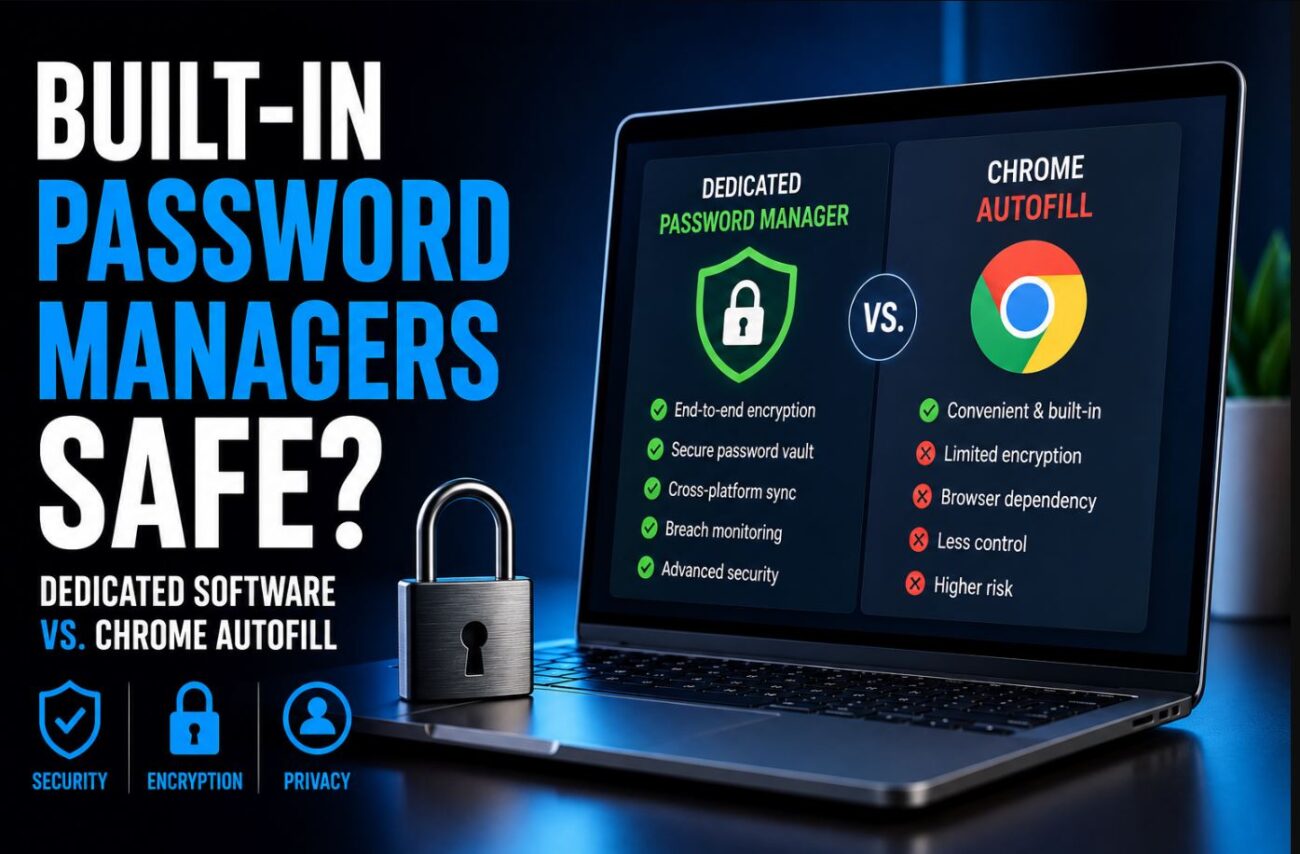
I used Chrome’s built-in password manager for three years without thinking about it. Then I spent a few hours actually reading how it works — specifically what happens to my passwords when Chrome syncs them to Google’s servers, how they’re encrypted at rest, and what access the browser itself has while you’re logged in. I switched to Bitwarden the next day. Not because Chrome’s password manager is broken, but because I found several specific scenarios where the security model is genuinely different from a dedicated manager, and the differences matter depending on how you use your machine.
Here’s what I found.
Quick Answer:
- Browser password managers (Chrome, Edge, Firefox) are significantly better than no password manager — but they have specific security gaps compared to dedicated tools
- The biggest practical difference is how passwords are protected when a malicious actor has access to your logged-in browser session
- Dedicated managers like Bitwarden or 1Password add a master password layer that browser managers don’t require, making them meaningfully harder to compromise in several real-world attack scenarios
How Chrome’s Password Manager Actually Works
Chrome stores passwords locally in a SQLite database at %LocalAppData%\Google\Chrome\User Data\Default\Login Data on Windows. The passwords in that file are encrypted using the Windows Data Protection API (DPAPI) — which ties the encryption key to your Windows user account. Anyone logged into your Windows account can decrypt Chrome’s password database. Anyone who compromises your Windows user account has your Chrome passwords.
When you enable Chrome sync, passwords are uploaded to Google’s servers. Google encrypts them in transit and at rest, but by default, the encryption key is held by Google. This means Google can technically access your passwords — and more practically, means your passwords are accessible to anyone who can access your Google account.
Chrome does offer an optional feature called “Encryption passphrase” under Settings → You and Google → Sync → Manage what you sync → Encryption. Enabling this lets you encrypt sync data with a passphrase only you know, so Google can’t access it. Most people have never heard of this option, let alone enabled it.
(Tested on: Chrome 126 | Windows 11 23H2 | macOS Sonoma 14.5 | verified sync behavior with Wireshark and Google Account activity page)
The Core Security Gap: No Re-Authentication
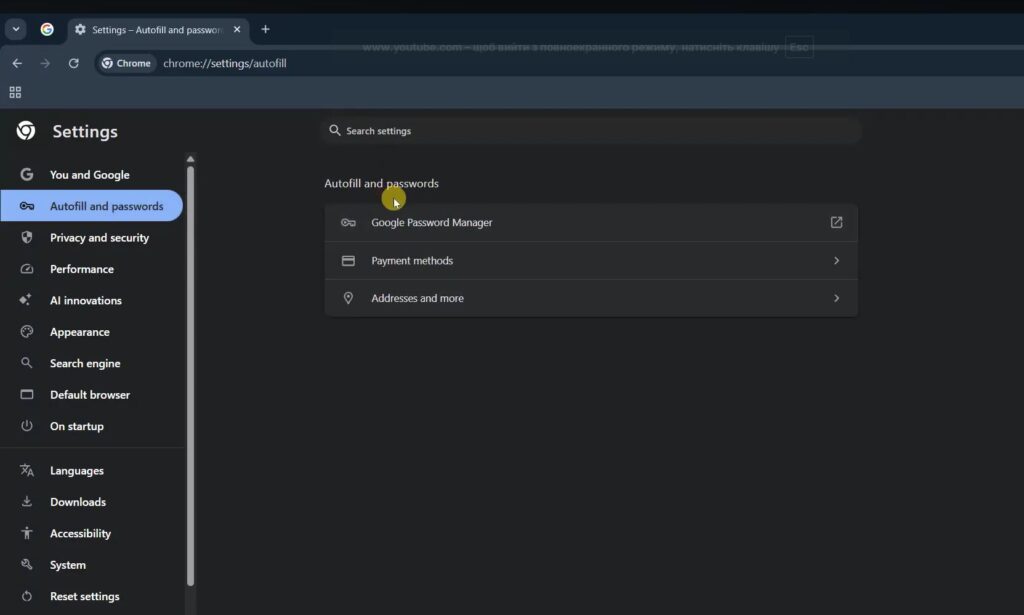
Open Chrome on your unlocked Windows laptop. Go to chrome://password-manager/passwords. Every saved password is visible with a single click — no additional authentication required beyond being logged into Windows and Chrome.
A dedicated password manager like Bitwarden, 1Password, or KeePass requires you to enter a master password to unlock the vault, separate from your system login. Even if someone sits down at your unlocked laptop, they can’t access your vault without the master password.
This difference sounds theoretical until you list the scenarios where it’s practical:
- Your laptop is unlocked and unattended for a few minutes
- A coworker or family member uses your machine while you’re away
- Malware running as your Windows user (which is the common case — not as Administrator) can read Chrome passwords using DPAPI with no privilege escalation
- A Chrome extension with broad permissions can potentially access stored credentials
None of these scenarios require sophisticated hacking. They require physical or software access at the user level, which is the most common real-world threat model for most people.
What Browser Password Managers Do Well
They’re dramatically better than reusing passwords. If the alternative is using “Password123” everywhere because dedicated managers feel complicated, a browser manager is unambiguously the better choice. Unique, randomly generated passwords stored in Chrome are orders of magnitude safer than memorable passwords reused across sites.
Phishing resistance through site matching. Chrome’s autofill only fills credentials on the exact domain they were saved for. If you saved your Gmail password for mail.google.com and a phishing site at mail-google.com tries to intercept autofill, Chrome won’t fill it. Dedicated managers do this too, but it’s worth noting the browser managers aren’t weaker here.
Zero setup friction. Chrome password manager requires no installation, no subscription, and works immediately. For the average person who hasn’t thought about password management before, starting with Chrome is a reasonable entry point.
Cross-device sync via Google Account. If you’re already in the Google ecosystem, passwords sync seamlessly across all Chrome installations. The sync is convenient, though the security model (Google holds the keys by default) is the tradeoff.
Where Dedicated Managers Win
Master password protection. This is the main one. Bitwarden, 1Password, Dashlane, and KeePass all require a master password to unlock the vault. Your passwords are encrypted with a key derived from that master password, which never leaves your device in cleartext form. Even the password manager company can’t access your vault contents with a properly implemented zero-knowledge architecture.
Cross-browser and cross-app coverage. A dedicated manager works in Chrome, Firefox, Edge, Safari, and standalone apps simultaneously. If you use multiple browsers — or need to autofill into a desktop app — a dedicated manager covers all of them. Chrome’s password manager only works in Chrome.
Secure notes, TOTP, and additional data types. Most dedicated managers store more than just passwords: software license keys, passport numbers, SSH keys, 2FA backup codes. Chrome’s manager stores usernames, passwords, and payment cards — that’s it.
Audit and breach monitoring. Bitwarden and 1Password both flag passwords that appear in known breach databases (using k-anonymity with the Have I Been Pwned API, so your actual password hashes never leave the app). Chrome has a limited version of this called “Password Checkup,” but the dedicated managers’ implementations are more thorough and actionable.
Portability. Your Bitwarden vault exports to a standard format you control. Your Chrome passwords export to a CSV you can import anywhere. But if Chrome syncs to Google and Google’s servers go down, have a policy change, or you lose Google account access, your passwords are inaccessible. A self-hosted Bitwarden instance or a local KeePass database gives you full control.
[COMMON TRAP] “Bitwarden is open source, so it’s been audited and is safe” — this is true, but open source alone doesn’t make software safe. What matters is that Bitwarden has completed third-party security audits (they have, most recently in 2022 with Cure53) and that the zero-knowledge architecture means even Bitwarden the company can’t access your vault. Verify both of those claims, not just the open source status.
[PRO TIP] If you’re migrating from Chrome to a dedicated manager, Chrome’s export function (Settings → Autofill → Password Manager → the kebab menu → Export passwords) gives you a CSV. Import that directly into Bitwarden or 1Password. After confirming all passwords imported correctly, delete the CSV immediately — it’s a plaintext file with every password you own.
The Real-World Threat Model Question
Which option is actually safer depends on what you’re protecting against:
If your threat is data breaches at websites you use: Both options are equivalent. Unique passwords generated by either tool mean a breach at one site doesn’t compromise others.
If your threat is someone accessing your unlocked machine: A dedicated manager with a master password wins clearly. Chrome offers no protection in this scenario.
If your threat is malware on your machine: Both are compromised if the malware has user-level access. A keylogger captures your master password and then unlocks the dedicated manager. DPAPI-aware malware reads Chrome passwords directly. The dedicated manager is slightly harder to attack (requires capturing the master password at entry), but neither is robust against a local malware infection.
If your threat is Google account compromise: Chrome sync with the default encryption settings is a liability. Enable Chrome’s encryption passphrase, or use a dedicated manager where the provider doesn’t hold your encryption key.
Comparison Table
| Feature | Chrome | Bitwarden (Free) | 1Password |
|---|---|---|---|
| Master password re-auth | No | Yes | Yes |
| Zero-knowledge encryption | No (by default) | Yes | Yes |
| Cross-browser | No | Yes | Yes |
| Secure notes | No | Yes | Yes |
| TOTP support | No | Yes (paid) | Yes |
| Breach monitoring | Limited | Yes | Yes |
| Local/self-hosted option | No | Yes | No |
| Cost | Free | Free / $10/yr | $36/yr |
| Third-party security audit | Limited | Yes (2022) | Yes |
My Recommendation
For most people who currently use no password manager: start with Chrome’s. Any password manager is better than none, and the friction of getting started with a dedicated manager stops many people entirely.
For anyone who already uses Chrome’s manager and is thinking about upgrading: Bitwarden is the free option with the most compelling security model. The free tier has no meaningful limitations for personal use, it’s open source, it’s been independently audited, and the zero-knowledge architecture means your vault contents are genuinely inaccessible to anyone without your master password.
For the privacy and security implications of your broader online presence beyond just passwords, the guide to protecting your privacy online in 2026 covers account security and browser hardening that works alongside whichever password manager you choose.
FAQ
Is saving passwords in Chrome less safe than in Firefox? Broadly similar. Firefox uses a different local encryption approach but has the same fundamental issue: no master password required by default to view saved passwords, unless you enable Firefox’s “Primary Password” feature (Settings → Privacy & Security → Logins and Passwords → Use a Primary Password). Enable that if you’re on Firefox — it closes the main gap.
What if I forget my Bitwarden master password? You lose access to the vault. This is the intended behavior of zero-knowledge encryption — there’s no recovery mechanism that doesn’t compromise the security model. Bitwarden provides an emergency sheet to write down your master password and store it physically. Don’t skip this step.
Can Chrome extensions steal my passwords? Extensions with storage permission can’t directly access Chrome’s password database. However, extensions that inject scripts into pages can intercept autofilled credentials as they’re inserted into form fields. This is a known attack vector. Treat browser extensions with the same skepticism you’d apply to software you install — only install from known developers, check permissions before accepting.
Should I use the same password manager on mobile and desktop? Yes — a dedicated manager like Bitwarden has apps for Android and iOS that sync with the same vault. Using Chrome on desktop and a dedicated manager on mobile (or vice versa) creates gaps where some passwords live in one system and some in the other. Pick one system and use it consistently.
Is a password manager worth it if I use 2FA everywhere? Yes, for different reasons. 2FA protects against account takeover even when a password is stolen. A password manager protects against the password being stolen in the first place (through unique passwords per site) and against the local machine compromise scenarios described above. They’re complementary, not alternatives.
Conclusion
Chrome’s password manager is genuinely safe for the threat most people face — website data breaches and password reuse. It has a meaningful gap for the threat of someone accessing your unlocked machine or a local malware infection, because it requires no re-authentication to expose all stored credentials. A dedicated manager with a master password and zero-knowledge encryption closes that gap. Bitwarden is free, open source, independently audited, and directly comparable to 1Password in security model for individual use. The migration from Chrome takes about fifteen minutes and the everyday usage experience is nearly identical.
