I set up Ollama on a machine with an RTX 4070 Ti and 32GB of RAM, pulled llama3:8b, and got 4 tokens per second. My CPU-only laptop running the same model through llama.cpp on Linux was doing 6. Something was clearly wrong. The NVIDIA GPU was supposed to be doing all the heavy lifting, but Ollama was barely using it. The fix turned out to be a single environment variable that prevents NVIDIA’s driver from silently falling back to system RAM for tensor operations — and it’s not mentioned anywhere in Ollama’s official documentation.
Quick Answer:
- Ollama on Windows 11 with NVIDIA GPUs can silently fall back to using system RAM (sysmem) instead of VRAM for model layers, causing dramatically slower inference
- The root cause is NVIDIA’s driver allowing “sysmem fallback” when the driver decides VRAM allocation is risky, which happens more aggressively on Windows than Linux
- Setting the environment variable
OLLAMA_CUDA_MALLOC_FALLBACK=0disables this fallback and forces Ollama to use VRAM properly
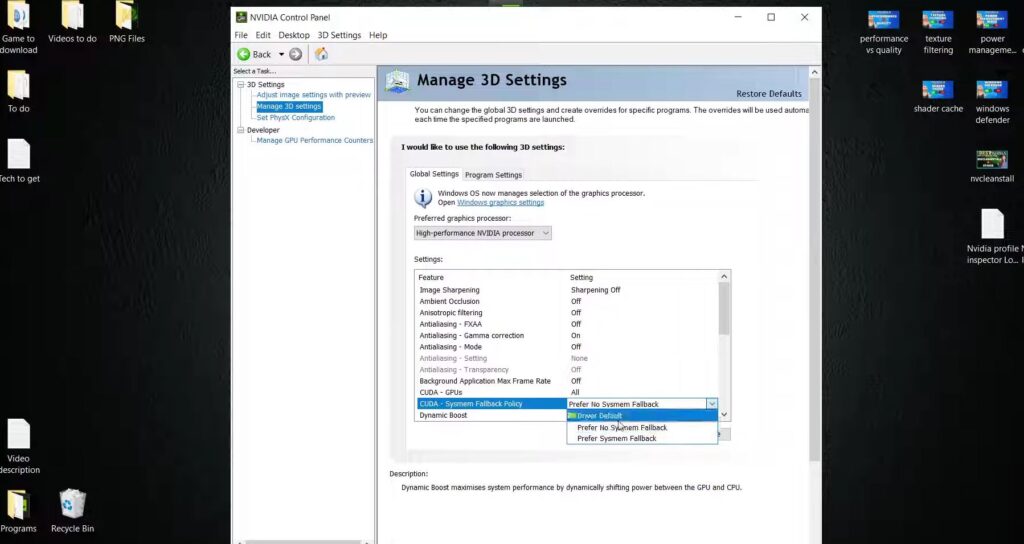
What “Sysmem Fallback” Actually Is
When NVIDIA’s CUDA runtime allocates memory for model weights and KV cache tensors, it has a fallback mechanism: if VRAM allocation fails or is deemed risky by the driver, it can transparently place those allocations in system RAM instead. The application (Ollama, in this case) isn’t notified — it just gets a pointer that happens to be in RAM rather than VRAM.
This fallback was designed for edge cases where VRAM is genuinely full. The problem on Windows 11 is that NVIDIA’s driver triggers this fallback more aggressively than on Linux due to differences in how Windows handles WDDM (Windows Display Driver Model) memory management. The driver may see fragmented VRAM, a conservative memory allocation limit set by the display driver, or contention with the Windows compositor and trigger the sysmem fallback even when substantial VRAM is free.
When model layers end up in system RAM instead of VRAM, inference speed drops dramatically — system RAM bandwidth is roughly 10–15x lower than VRAM bandwidth on a modern RTX card, and the PCIe bus adds latency on every tensor operation. You still get output, just at a fraction of the expected speed.
The worst part: NVIDIA’s driver doesn’t log a warning. Ollama doesn’t alert you. nvidia-smi still shows VRAM usage, some of which may be the allocations that fell back. You’d only discover it through performance monitoring.
(Tested on: RTX 4070 Ti 12GB VRAM | Windows 11 23H2 | Ollama 0.3.8 | Driver 551.86 | llama3:8b Q4_K_M)
Diagnosing Whether This Is Your Problem
Before applying the fix, confirm sysmem fallback is actually happening. Three quick checks:
Check 1: Compare tokens/sec against expected
For reference, a properly GPU-accelerated llama3:8b Q4_K_M on an RTX 4070 Ti should produce 40–60 tokens/second. If you’re seeing under 15, something is wrong. On an RTX 3080, expect 25–40 t/s. On a 4090, 80–120 t/s. If your numbers are 3–10x below these ranges, sysmem fallback or another GPU utilization issue is likely.
Check 2: Monitor GPU compute utilization during inference
Open Task Manager → Performance → GPU → watch “3D” utilization (compute, not copy or video decode) while Ollama is generating a response. With proper GPU acceleration, you should see 60–95% GPU utilization. Under 20% during active inference means the GPU isn’t doing the work.
Check 3: Use nvidia-smi to monitor memory
Open a terminal and run nvidia-smi dmon -s mu -d 1 while Ollama generates. Watch the fb (framebuffer, i.e. VRAM) column. If VRAM usage is lower than the model size suggests it should be — for llama3:8b Q4, expect 5–6GB of VRAM occupied — the model layers may have fallen back to sysmem.
For llama3:8b Q4_K_M on a 12GB card, the entire model should fit comfortably in VRAM. If VRAM shows under 4GB used while the model is loaded, sysmem fallback is confirmed.
The Fix: Setting OLLAMA_CUDA_MALLOC_FALLBACK
The environment variable OLLAMA_CUDA_MALLOC_FALLBACK=0 tells NVIDIA’s CUDA allocator to return an error instead of falling back to sysmem when VRAM allocation fails. Ollama handles this by keeping the allocation in VRAM and retrying, rather than silently moving to RAM.
Setting it as a System Environment Variable (Persistent)
This is the recommended approach — it persists across reboots and applies to all Ollama sessions.
- Press Win+R → type
sysdm.cpl→ press Enter - Click Advanced tab → Environment Variables
- Under System variables (bottom section, not user variables) → click New
- Variable name:
OLLAMA_CUDA_MALLOC_FALLBACK - Variable value:
0 - Click OK → OK → OK
- Restart the Ollama service: open Services (Win+R →
services.msc) → find Ollama → right-click → Restart. Or simply reboot.
Setting it for the Current Session Only (Testing First)
To test before making it permanent, open PowerShell and run:
$env:OLLAMA_CUDA_MALLOC_FALLBACK = "0"
ollama serve
Keep this PowerShell window open and run your Ollama queries in a separate terminal. The variable only applies to processes started from this PowerShell session.
Setting it via Ollama’s Environment File
Ollama on Windows supports a .env file at C:\Users\[username]\.ollama\. Create or edit that file and add:
OLLAMA_CUDA_MALLOC_FALLBACK=0
Restart the Ollama service after saving.
[COMMON TRAP] Setting environment variables in PowerShell with
$env:VAR = "value"only affects the current session and its child processes. If you start Ollama as a Windows Service (which is the default installation), the service won’t see session-scoped variables. Use the system environment variable method or the.envfile for the service to pick it up.
Additional Settings That Improve Ollama Performance on Windows
While you’re tuning, these settings compound with the sysmem fix:
OLLAMA_NUM_GPU
OLLAMA_NUM_GPU=99
This tells Ollama to use all available GPU layers. By default, Ollama may be conservative about how many model layers it offloads to GPU. Setting this to 99 (a sentinel value meaning “as many as possible”) ensures maximum GPU utilization for models that fit in VRAM.
OLLAMA_GPU_OVERHEAD
OLLAMA_GPU_OVERHEAD=0
Ollama reserves a buffer of VRAM by default to prevent out-of-memory errors. On a 12GB card running models that fit comfortably, this reserved buffer is unnecessary overhead. Setting it to 0 makes the full VRAM available for model layers. Don’t set this to 0 if you’re regularly running models close to your VRAM limit — you’ll start seeing OOM crashes.
Disable Windows Hardware-Accelerated GPU Scheduling (HAGS)
Settings → System → Display → Graphics → Change default graphics settings → Hardware-accelerated GPU scheduling → Off.
HAGS can interfere with CUDA workloads on Windows 11 in certain driver versions. It helps gaming latency but can fragment VRAM allocation in ways that trigger the sysmem fallback more frequently. Disabling it gives CUDA more predictable VRAM access patterns. Test with and without — some GPU/driver combinations perform better with HAGS on.
Update to the Latest NVIDIA Driver
The sysmem fallback behavior has been improved across driver versions. Studio drivers (which prioritize stability for creative workloads and CUDA applications) tend to behave better than Game Ready drivers for Ollama use cases. Download the Studio Driver from NVIDIA’s site if you’re primarily using the machine for AI inference rather than gaming.
Verifying the Fix Worked
After setting the environment variable and restarting Ollama, run the same query you benchmarked before and compare:
ollama run llama3:8b "Write a 200 word summary of quantum computing"
Check the eval rate in Ollama’s output (run with --verbose to see it):
ollama run --verbose llama3:8b "Write a 200 word summary of quantum computing"
The eval rate is tokens/second. If it went from 4–8 t/s to 40+ t/s, the fix worked. If it’s still slow, check GPU utilization in Task Manager during the run — if GPU compute is still under 20%, there’s a secondary issue (see Troubleshooting below).
Troubleshooting
Still slow after setting the variable
Verify the service actually restarted with the new variable. Open PowerShell as administrator and run:
Get-Process -Name ollama | Select-Object -ExpandProperty MainWindowTitle
Or check with:
[System.Environment]::GetEnvironmentVariable("OLLAMA_CUDA_MALLOC_FALLBACK", "Machine")
This should return 0. If it returns nothing, the system environment variable wasn’t set correctly.
Ollama crashes or throws CUDA OOM errors after the fix
The sysmem fallback was previously absorbing memory pressure that now surfaces as actual errors. You have two options: reduce the model size (use a Q3 or Q2 quantization), or add OLLAMA_GPU_OVERHEAD back to a value like 268435456 (256MB) to give the driver a buffer.
GPU utilization is high but speed is still slower than expected on Windows vs. Linux
Windows WDDM adds overhead to CUDA kernel launches that doesn’t exist on Linux. This is a known architectural difference — WDDM was designed for display workloads, not compute. The overhead is typically 10–20% compared to native Linux. If you’re comparing a Windows machine to a Linux machine with identical hardware, some difference is expected. The sysmem fix closes the larger gap; the remaining difference is the WDDM tax.
The model partially fits in VRAM — will this help?
If your model is larger than your VRAM, some layers will inevitably run on CPU. The fix helps ensure that the layers that DO fit in VRAM stay there instead of being pushed to sysmem unnecessarily. Partial VRAM loading is normal and expected for large models — the issue is when layers fall back to sysmem even when VRAM is available.
FAQ
Does this affect AMD GPUs or Intel Arc? No. OLLAMA_CUDA_MALLOC_FALLBACK is NVIDIA CUDA-specific. AMD ROCm and Intel OneAPI have different memory management paths. If you’re experiencing slow inference on AMD, the relevant setting is different.
Will this cause stability issues? Not on cards with sufficient VRAM for the model you’re running. If you’re right at the VRAM limit, removing the sysmem fallback means out-of-memory errors instead of silent fallback — which is actually preferable because you know something’s wrong rather than getting slow output. Drop to a smaller quantization if you hit OOM.
Does this affect other CUDA applications? Yes — it’s a system-wide environment variable. Applications like Stable Diffusion WebUI and ComfyUI will also see this setting. For those applications, disabling the fallback generally improves performance for the same reason. If any specific application starts having issues, you can scope the variable to just Ollama’s process rather than setting it system-wide.
My VRAM is 8GB and the model is 7GB. Will this work? With 8GB VRAM and a 7GB model, there’s only 1GB headroom. The sysmem fallback may legitimately kick in for KV cache during long contexts. Disabling it may cause OOM errors during extended conversations. In this case, set OLLAMA_GPU_OVERHEAD=0 to maximize usable VRAM, but keep OLLAMA_CUDA_MALLOC_FALLBACK at its default or set it to 1 (enabled). The fix is most beneficial when the model clearly fits within your VRAM budget with room to spare.
Is there a way to monitor which tensors are in VRAM vs sysmem? Not easily from Ollama’s interface. You can use CUDA’s memory debugging tools (cuda-memcheck or Nsight Systems), but these require technical setup. The practical approach is to infer from tokens/second and GPU utilization rather than inspecting allocations directly. If you’re curious about building your own LLM pipeline where you’d have this kind of low-level visibility, the guide on building your own LLM and what’s actually realistic covers the infrastructure considerations in detail.
Conclusion
The sysmem fallback issue on Windows is one of those silent performance killers that’s easy to miss because everything appears to work — you get output, the GPU shows some utilization, and there’s no error message. The environment variable fix takes thirty seconds to apply and consistently recovers the performance gap between Windows and Linux Ollama setups on the same hardware. If you’re running a locally hosted LLM on Windows with an NVIDIA GPU and your token rates are significantly below what the hardware should deliver, this is the first thing to check.
