A VPN client I’d stopped using six months ago was still showing up in Add/Remove Programs. Clicking Uninstall threw an error: “The installation package could not be found.” The uninstaller binary was gone — the software had partially removed itself during a botched update and left behind a registry entry pointing to a file that no longer existed. Windows had no idea what to do with it. Clearing it took three tools and about fifteen minutes. If you’re stuck in the same situation, this is the exact sequence that actually works, escalating from simple to nuclear.
Quick Answer:
- Most “won’t uninstall” problems fall into three categories: the uninstaller is broken/missing, a process is locking files, or registry entries are orphaned
- Revo Uninstaller (free) handles 80% of cases by running the original uninstaller and then cleaning up what’s left
- For software with no uninstaller at all, manual registry cleaning plus safe mode deletion is the fallback
Why Software Gets Stuck
Before pulling out the heavy tools, it helps to know which failure mode you’re dealing with. The fix is different depending on the cause.
Broken or missing uninstaller: The software registered itself with Windows as installed, but the uninstaller binary (usually uninstall.exe or uninst.exe inside the program folder) has been moved, deleted, or corrupted. Windows can’t remove it because there’s nothing to run.
Running process blocking uninstall: The software or one of its services is actively running and has file handles open. Windows can’t delete files that are in use, so the uninstaller fails partway through.
Corrupted Windows Installer database: Software installed via .msi files registers with the Windows Installer service. If that registration is corrupted (common after failed updates), the built-in uninstaller throws errors like “The Windows Installer Service could not be accessed” or “This installation package could not be found.”
Self-protecting software: Antivirus programs, some enterprise software, and a handful of adware installers use kernel-level drivers or protected registry keys to resist removal. These need specific vendor uninstallers or Safe Mode.
Step 1: Try the Standard Methods First (They Sometimes Work)
Before anything else, try these in order. Occasionally a second attempt at a slightly different angle is all it takes.
Open Settings → Apps → Installed apps → find the software → click the three-dot menu → Uninstall.
If that fails with an error, try Control Panel → Programs → Programs and Features → right-click the software → Uninstall/Change. Control Panel’s uninstaller path sometimes works when Settings doesn’t because it goes through a slightly different code path.
If both fail, check the program’s install folder (usually C:\Program Files\[AppName] or C:\Program Files (x86)\[AppName]) and look for a file called uninstall.exe, uninst.exe, unins000.exe, or setup.exe. Run it directly as administrator. Sometimes the shortcut Windows uses is corrupted, but the actual file is fine.
[COMMON TRAP] Searching for “uninstall” in the Start menu sometimes surfaces a shortcut the software installed in its own Start Menu folder. These shortcuts often work even when the Control Panel entry doesn’t, because they point directly to the uninstaller binary rather than going through the Windows Installer database.
Step 2: Use Revo Uninstaller to Clean Up What’s Left
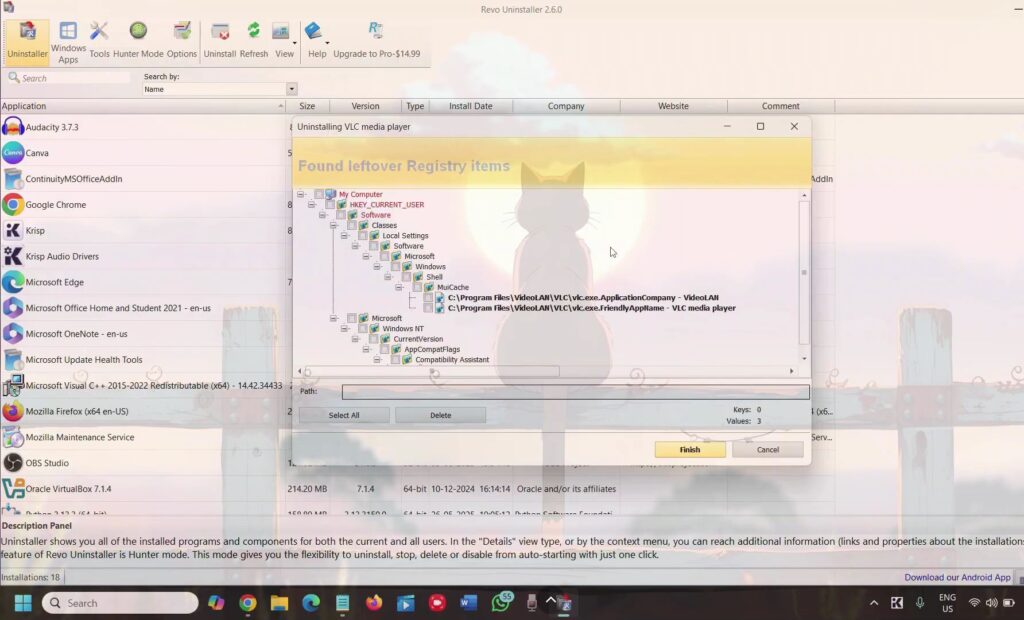
Revo Uninstaller Free (revouninstaller.com) is the standard tool for this situation. It does two things the built-in Windows uninstaller doesn’t: it runs the original uninstaller first, then scans for leftover registry entries, files, and folders and lets you remove them.
Download and install Revo → open it → find the software in the list → right-click → Uninstall → choose “Advanced” scanning mode.
Revo runs the built-in uninstaller, then presents you with a list of orphaned registry keys and leftover files. Review the list before deleting — it’s usually safe to remove everything Revo identifies, but occasionally it flags shared files used by other software. Anything under HKEY_LOCAL_MACHINE\SOFTWARE\[AppName] or HKEY_CURRENT_USER\SOFTWARE\[AppName] is specific to the target app and safe to remove.
If the software doesn’t appear in Revo’s main list (which happens when the Windows Installer entry is completely corrupted), use Revo’s “Hunter Mode” — a crosshair tool you can drag over any running window or shortcut to force-uninstall it.
(Tested on: Windows 11 23H2 | Revo Uninstaller Free 5.2.1)
[PRO TIP] Revo’s “Forced Uninstall” option (File menu → Forced Uninstall) lets you point it at a program folder or type a software name even when nothing shows up in the installed programs list. This is the tool for completely orphaned software where not even Revo’s normal scan finds it.
Step 3: Kill Blocking Processes Before Uninstalling
If the uninstaller starts but freezes or throws an “access denied” or “file in use” error partway through, a process is holding file handles open.
Open Task Manager (Ctrl+Shift+Esc) → Details tab → look for processes related to the software by name. Right-click → End task. If the process restarts itself automatically (common with antivirus and some adware), move to the Services tab and check for a related service — right-click → Stop.
For software with a self-restarting process, use Process Explorer (free from Microsoft Sysinternals). Open Process Explorer → Find menu → Find Handle or DLL → search for the software’s folder name. This shows every process with open handles to that folder. Kill them all, then retry the uninstaller.
If a process restarts even after being killed, it’s likely a Windows Service. Open services.msc (Win+R → type services.msc) → find the service → double-click → change Startup type to Disabled → click Stop → OK. Now the process won’t restart and the uninstaller can proceed.
Step 4: Run the Uninstaller in Safe Mode
Safe Mode boots Windows with only essential drivers and services running. Most third-party software — including self-protection drivers used by antivirus and some adware — doesn’t load in Safe Mode, which means the software can be deleted without anything blocking it.
To boot into Safe Mode: hold Shift and click Restart in the Start menu → Troubleshoot → Advanced options → Startup Settings → Restart → press 4 for Safe Mode, or 5 for Safe Mode with Networking if you need internet access.
In Safe Mode, try the uninstaller again from Control Panel. Most stubborn software gives up and removes cleanly once its protective processes aren’t running.
If the software still doesn’t appear in Control Panel in Safe Mode, navigate to the install folder in File Explorer and delete it manually. In Safe Mode, file locks from third-party processes are gone.
[COMMON TRAP] Some software installers detect Safe Mode and refuse to run, showing an error like “This installer cannot run in Safe Mode.” If that happens, use the manual deletion method below — Safe Mode still lets you delete the files directly, even if the uninstaller itself won’t run.
Step 5: Manual Registry Cleanup for Orphaned Entries
If the software is gone from the filesystem but still appears in Add/Remove Programs, you have an orphaned registry entry. This is cosmetic but annoying — Windows thinks something is installed that isn’t.
Open Registry Editor: Win+R → type regedit → run as administrator.
Navigate to HKEY_LOCAL_MACHINE\SOFTWARE\Microsoft\Windows\CurrentVersion\Uninstall. This key contains subkeys for every installed program. Each subkey has a DisplayName value — scan through them to find the orphaned software. When you find it, note the key name (it’s usually a GUID like {12345678-1234-1234-1234-123456789ABC}), then delete the entire subkey.
Also check HKEY_CURRENT_USER\SOFTWARE\Microsoft\Windows\CurrentVersion\Uninstall for per-user installations.
After deleting those keys, open a new Control Panel session — the software should be gone from the list.
For leftover software keys in HKEY_LOCAL_MACHINE\SOFTWARE\[CompanyName] and HKEY_CURRENT_USER\SOFTWARE\[CompanyName], those are fine to delete too if you’re confident the software is gone.
[COMMON TRAP] Registry Editor doesn’t have undo. Before deleting any registry key, right-click it → Export → save it as a .reg file somewhere safe. If something goes wrong, double-clicking the .reg file restores the key. Skipping this step has burned more people than any other registry operation.
Step 6: The Nuclear Option — Microsoft’s Uninstall Troubleshooter
Microsoft has a tool specifically for fixing broken Windows Installer entries. It’s called the “Program Install and Uninstall Troubleshooter” and it’s a free download from Microsoft’s support site (search “Microsoft Fix it 50842” or “Program Install and Uninstall Troubleshooter” on support.microsoft.com).
The tool scans for corrupted installer database entries and automatically repairs or removes them. It’s particularly effective for .msi-based software that throws “The installation package could not be found” or “Windows Installer Service could not be accessed” errors.
Run it → select “Uninstalling” → choose the program from the list → follow the prompts. In most cases it resolves the Windows Installer corruption and removes the entry cleanly.
App-Specific Notes for Common Stubborn Software
Antivirus software (Norton, McAfee, Avast, AVG, Bitdefender, Kaspersky): Every major antivirus vendor has a dedicated removal tool because their software is intentionally hard to remove through normal means. Search for “[AV brand] removal tool” on their official site. Norton has NRNR (Norton Remove and Reinstall), McAfee has MCPR, Avast has AvastClear, and so on. Always use the vendor’s own removal tool for antivirus before trying anything else — they handle the kernel-level drivers that Safe Mode can’t touch.
Microsoft Office and 365: Use Microsoft’s dedicated Support and Recovery Assistant (SARA tool) for Office removal. The standard Add/Remove Programs uninstall fails frequently on partial Office installations, especially after failed updates.
Browser toolbars and bundleware: These often install themselves as browser extensions AND as Windows programs simultaneously. Removing from Add/Remove Programs leaves the extension. Removing the extension leaves the Windows entry. You need to do both. If the Windows entry is stubborn, Revo Uninstaller handles most toolbar removal cleanly. For anything that looks like adware, also think about whether leftover cloud sync folders are adding to the clutter — the guide on how to clear Microsoft OneDrive cloud storage covers the manual folder and registry cleanup steps that overlap with stubborn software removal. If you’re also worried about what the software may have exposed, protecting your privacy online is a good next step after a full cleanup.
Steam games showing in Programs and Features: Steam games that fail mid-install sometimes leave entries in Add/Remove Programs. The fix is to go to Steam → Library → right-click the game → Manage → Uninstall. Don’t try to remove them through Windows directly — Steam’s own uninstaller handles the registry cleanup correctly.
Troubleshooting
“Error 1721: There is a problem with this Windows Installer package”
This is a Windows Installer service error, not the software’s fault. Run the Microsoft Program Install and Uninstall Troubleshooter first. If that doesn’t resolve it, open services.msc → Windows Installer → right-click → Restart. Sometimes the service gets stuck in a broken state and just needs a restart to work again.
Uninstaller runs but leaves behind a startup entry
Some software adds itself to Windows startup even after uninstalling. Open Task Manager → Startup apps tab → look for the software name → right-click → Disable. Also check HKEY_CURRENT_USER\SOFTWARE\Microsoft\Windows\CurrentVersion\Run in Registry Editor for any leftover startup entries.
Software still appears in Start Menu after full removal
The Start Menu tiles/shortcuts are stored separately from the program itself. After uninstalling, right-click any remaining Start Menu shortcut → More → Open file location → delete the shortcut file manually. Also check C:\ProgramData\Microsoft\Windows\Start Menu\Programs and C:\Users\[YourUsername]\AppData\Roaming\Microsoft\Windows\Start Menu\Programs.
“Access is denied” when deleting program folder manually
The folder has ownership assigned to a different account or to the SYSTEM account. Right-click the folder → Properties → Security → Advanced → Change owner to your account → check “Replace owner on subcontainers and objects” → Apply. Then retry the deletion. If it still fails, restart in Safe Mode and delete it from there.
FAQ
Is it safe to edit the registry to remove software entries? Yes, with two precautions: export the key before deleting it (right-click → Export), and only delete keys specifically related to the software you’re removing. Don’t touch keys you don’t recognize.
Will Revo Uninstaller break anything? Revo Uninstaller’s scanning is conservative by design — it flags files and registry keys but shows them to you before deletion. Using “Advanced” mode gives you full visibility. The only risk is if you accidentally delete a shared file used by other software, which Revo usually flags with a warning. Review the list before confirming.
My software doesn’t appear in any uninstaller list. How do I even know where it installed? Search the registry for the software name: open Registry Editor → Edit → Find → type the software name → search. Also check C:\Program Files, C:\Program Files (x86), C:\Users\[YourUsername]\AppData\Local, and C:\ProgramData. Portable software (no installer) sometimes lives anywhere the user put it.
After removal, search still shows the old software. How do I clear that? Windows Search indexes programs when they’re installed. After removal, the index updates on its own schedule (usually within a few hours). To force it immediately: Settings → Privacy & security → Searching Windows → scroll down → “Advanced indexing options” → Rebuild.
Can a stubborn uninstaller corrupt my Windows installation? A failed uninstaller can corrupt specific application entries and occasionally shared DLL registrations. It’s rare for it to affect the core Windows installation. If you’re worried, create a System Restore point before starting: search “Create a restore point” in Start → Create.
Conclusion
The escalation path for stubborn Windows software is: standard uninstaller → Revo Uninstaller with Advanced mode → kill blocking processes → Safe Mode uninstall → manual registry cleanup → Microsoft’s Uninstall Troubleshooter. Most problems resolve at step two. The manual registry cleanup and Safe Mode methods cover everything else short of deeply embedded system software, which needs vendor-specific removal tools. Every step here is reversible with a registry backup or System Restore point, so there’s no reason to stay stuck staring at a ghost entry in Add/Remove Programs.
