Hardware acceleration was disabled on my work laptop by IT policy, and I didn’t notice for eight months. Then I compared video playback on the same machine with it on versus off: CPU usage during a 1080p YouTube stream dropped from 34% to 11%. Page scrolling on complex dashboards went from visibly choppy to smooth. Turning it back on took thirty seconds. If you’ve never checked whether this is actually enabled on your machine — or if you turned it off years ago to fix some unrelated glitch — this guide walks through what it does, how to enable it correctly in both Chrome and Edge, and what to do when it causes problems instead of fixing them.
Quick Answer:
- Hardware acceleration offloads graphics rendering from your CPU to your GPU, reducing CPU load during video playback, scrolling, and animations
- It’s enabled by default in Chrome and Edge but can get disabled during driver updates, OS changes, or troubleshooting
- Enable it in Chrome at
chrome://settings/systemand in Edge atedge://settings/system
What Hardware Acceleration Actually Does (And What It Doesn’t)
The browser spends a meaningful amount of time drawing things on screen: compositing layers, decoding video, rendering animations, applying CSS transforms, and painting pixels. Without hardware acceleration, all of this runs on the CPU using software rendering. With it on, the browser hands that work to the GPU, which is purpose-built for exactly these parallel pixel-manipulation tasks.
The practical results depend on what you’re doing:
Video playback: The biggest gain for most users. With hardware acceleration, Chrome and Edge use the GPU’s dedicated video decode engine (NVDEC on Nvidia, VCE/VCN on AMD, Quick Sync on Intel). A 4K YouTube video that pegs one CPU core at 60–80% might use 5–10% CPU with hardware decoding active. Battery life on laptops improves noticeably.
Scrolling and animations: Pages with heavy CSS animations, parallax effects, or complex layouts scroll smoother because layer compositing moves to the GPU.
WebGL and canvas: Games, maps, and data visualizations rendered in WebGL run significantly faster with GPU acceleration. Without it, WebGL falls back to software rendering (SwiftShader), which is dramatically slower.
What it doesn’t affect: Text rendering, most static page layouts, JavaScript execution speed. Hardware acceleration is a rendering pipeline change, not a general performance boost.
Enabling Hardware Acceleration in Chrome
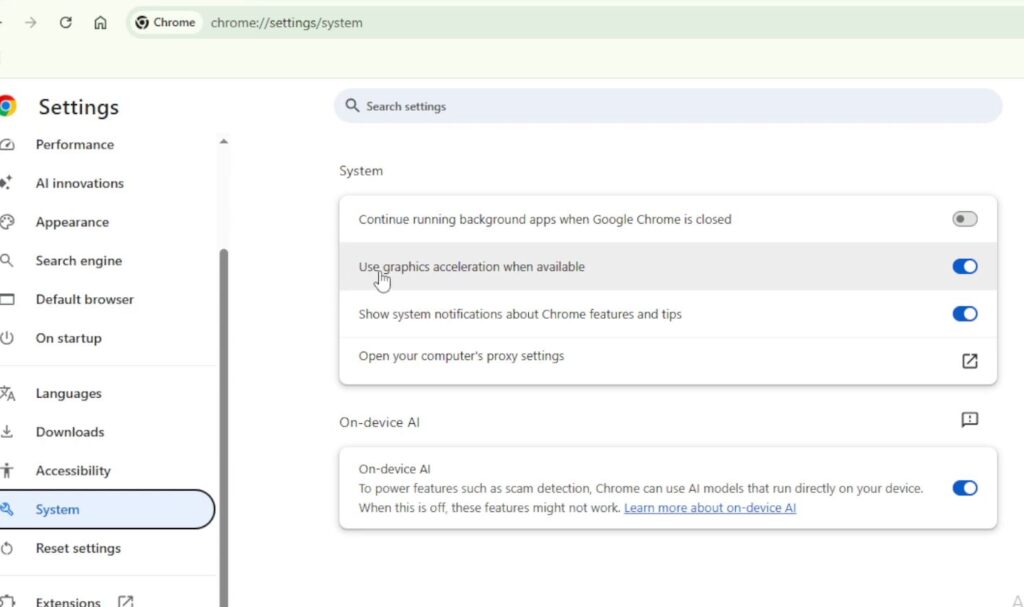
Open Chrome → type chrome://settings/system in the address bar → press Enter.
You’ll see “Use hardware acceleration when available” with a toggle. If it’s off, turn it on → click “Relaunch” to restart Chrome with the change active.
(Tested on: Chrome 126 | Windows 11 23H2 | also verified on Chrome 126 | macOS Sonoma 14.5)
To verify it’s actually working after the relaunch, go to chrome://gpu in the address bar. Look for the “Graphics Feature Status” section at the top. You want to see “Hardware accelerated” next to:
- Canvas
- Compositing
- Video Decode
- WebGL
- WebGL2
If any of these show “Software only, hardware acceleration unavailable” or “Disabled,” there’s either a driver issue or Chrome has blocklisted your GPU (more on that below).
[PRO TIP] The
chrome://gpupage also shows your GPU information near the top under “Driver Information.” If it lists the wrong GPU — for example, showing Intel integrated graphics when you have a dedicated Nvidia or AMD GPU — that’s why hardware acceleration underperforms. The fix is updating your GPU driver, not the browser.
Enabling Hardware Acceleration in Edge
Open Edge → type edge://settings/system in the address bar → press Enter.
Same toggle: “Use hardware acceleration when available.” Turn it on if it’s off → click “Restart.”
To verify, go to edge://gpu — the layout is identical to Chrome’s GPU page since Edge is Chromium-based. Check the same features: Canvas, Compositing, Video Decode, WebGL.
[COMMON TRAP] Edge has an additional setting that Chrome doesn’t: Efficiency Mode. When Efficiency Mode is active (Settings → System and performance → Optimize performance), Edge may throttle GPU usage to save power even with hardware acceleration enabled. On laptops plugged in, disable Efficiency Mode or set it to “Never” to get full GPU performance.
The GPU Blocklist Problem
Chrome and Edge maintain an internal blocklist of GPU driver versions known to cause crashes or rendering bugs. If your GPU or driver is on this list, hardware acceleration gets disabled silently even when the toggle is on — and chrome://gpu will show features as “Disabled” with a reason like “Disabled via software rendering list.”
To check if this is happening: go to chrome://gpu → scroll down to “Problems Detected” or “Driver Bug Workarounds.” If you see your GPU listed there, that’s your issue.
Fix option 1: Update your GPU driver. The blocklist is version-specific — newer drivers are often removed from it.
Fix option 2: Override the blocklist. Go to chrome://flags → search for “Override software rendering list” → enable it → relaunch. This forces hardware acceleration on regardless of the blocklist. It works on most systems but can cause visual glitches or crashes on hardware with known driver bugs. Test it — if things look fine, leave it. If Chrome becomes unstable, disable it.
[COMMON TRAP] The blocklist override flag is labeled differently across Chrome versions. In Chrome 120+, search for “ignore-gpu-blocklist” if “Override software rendering list” doesn’t appear. They’re the same setting with different names across versions.
Enabling Hardware Video Decoding Specifically
General hardware acceleration covers compositing and WebGL, but video decode is controlled by a separate flag in Chrome that’s sometimes off even when the main toggle is on.
In Chrome’s address bar, type chrome://flags → search for “Hardware-accelerated video decode” → if it shows “Default” or “Disabled,” set it to “Enabled” → relaunch.
After relaunching, verify at chrome://gpu → look for “Video Decode: Hardware accelerated.” If it now shows hardware accelerated, you’ll see reduced CPU usage during video playback immediately.
On Windows 11, Chrome also supports hardware-accelerated video encode for screen sharing and WebRTC calls. Search for “Hardware-accelerated video encode” in chrome://flags and enable that too if you do a lot of video calls in the browser.
macOS-Specific Notes
On Apple Silicon Macs (M1, M2, M3, M4), hardware acceleration in Chrome and Edge works differently from Intel Macs. The GPU and video decode engines are part of Apple’s unified memory architecture, and Chrome uses Apple’s VideoToolbox framework for hardware video decoding on these machines.
If you’re on an M-series Mac and chrome://gpu shows video decode as software-only, check that you’re running a native Apple Silicon build of Chrome (not Rosetta). Go to Activity Monitor → find Chrome Helper (GPU) → right click → Get Info → look for “Kind: Apple” (not “Intel”). If it shows Intel, you’re running the Rosetta version. Download the native Apple Silicon Chrome from Google’s site directly.
On Intel Macs, hardware acceleration generally works the same as Windows. If chrome://gpu shows issues, update macOS and your browser — older macOS versions have known GPU driver bugs that were fixed in later updates.
Troubleshooting: When Hardware Acceleration Causes Problems
Hardware acceleration causes visual glitches, crashes, or performance regressions on some hardware/driver combinations. The symptoms are specific: flickering on scroll, black rectangles appearing and disappearing, video showing as a black box, or Chrome crashing on startup.
If you see these after enabling hardware acceleration, the fix is usually one of three things:
Update your GPU driver first. Most hardware acceleration problems on Windows come from outdated drivers, particularly on laptops where OEM driver updates lag behind AMD/Nvidia releases. Download directly from AMD, Nvidia, or Intel’s site rather than Windows Update.
Disable specific flags if the main toggle is fine. Sometimes hardware-accelerated video decode specifically causes problems while everything else works. Go to chrome://flags → set “Hardware-accelerated video decode” back to Default → relaunch. This gives you GPU compositing benefits while keeping software video decode.
Roll back a recent driver update. If problems appeared right after a Windows Update or manual driver update, roll back: Device Manager → Display adapters → right-click your GPU → Properties → Driver tab → Roll Back Driver.
[COMMON TRAP] If Chrome crashes on startup after enabling hardware acceleration, you can’t get to settings to turn it off. Fix: launch Chrome with the
--disable-gpucommand line flag. Open Run (Win+R) → type"C:\Program Files\Google\Chrome\Application\chrome.exe" --disable-gpu→ press Enter. This starts Chrome without GPU acceleration so you can go to settings and disable it properly.
Checking Real Impact: Before and After
The clearest way to see what hardware acceleration is doing for your specific machine is to compare CPU usage during video playback with it on and off.
Open Task Manager → Performance tab → CPU. Open a 4K YouTube video (search “4K 60fps test” on YouTube) → let it play for 30 seconds and note CPU usage. Then toggle hardware acceleration off, relaunch Chrome, play the same video, and compare.
On most machines with a dedicated GPU, the difference is 15–40 percentage points of CPU load. On integrated graphics, the difference is smaller but still measurable — Intel’s Quick Sync is efficient at video decode even when the GPU isn’t particularly powerful.
FAQ
Does hardware acceleration help with slow page loading? No. Page load speed depends on network speed, server response time, and JavaScript execution — none of which are GPU tasks. Hardware acceleration affects rendering after the page is loaded.
Will enabling hardware acceleration drain my laptop battery faster? It depends. For video playback specifically, hardware acceleration reduces battery drain because the dedicated video decode engine is far more power-efficient than software decoding on the CPU. For heavy WebGL content, the GPU works harder and may use more power. In practice, enabling it is almost always a net battery improvement for typical browsing.
Chrome says hardware acceleration is enabled but chrome://gpu still shows software rendering for some features. Why? The main toggle enables hardware acceleration in general, but individual features have their own flags and blocklist entries. Video decode, WebGL, and canvas compositing are each controlled separately. Use chrome://flags to enable specific hardware-accelerated features, and check chrome://gpu to confirm each one individually.
Does this affect browser extensions? Extensions run in their own process and aren’t directly affected by GPU acceleration settings. However, if an extension adds heavy visual overlays or modifies page rendering (like screenshot tools or ad blockers with element hiding), those changes are composited along with the rest of the page and do benefit from hardware acceleration being on.
I have two GPUs (integrated + dedicated). Which one does Chrome use? By default, Chrome uses whichever GPU Windows assigns as the default for that application. To force Chrome to use the dedicated GPU: Windows Settings → System → Display → Graphics → find Chrome → Options → set to “High performance.” This is worth doing on gaming laptops where the dedicated GPU is an Nvidia or AMD card and Chrome might default to Intel integrated.
Can this affect my online privacy? Hardware acceleration itself doesn’t affect network-level privacy. However, the GPU can be used as an entropy source for browser fingerprinting through WebGL — sites can fingerprint your GPU model and driver through the information exposed by WebGL. If fingerprinting resistance is a priority for you, the guide to protecting your privacy online covers browser fingerprinting and what you can do about it without sacrificing performance.
Conclusion
Hardware acceleration is enabled by default in Chrome and Edge for good reason — for the vast majority of hardware, it reduces CPU load, improves video playback, and smooths out rendering with no downsides. The main reasons it ends up disabled are driver blocklists, manual troubleshooting from years ago, and IT policy on managed machines. Checking chrome://gpu after enabling it tells you whether it’s actually working at the hardware level or just showing the toggle in the on position while still running on software. Update your GPU driver if features show as disabled — that resolves most cases where the toggle is on but the GPU page disagrees.
