I switched my daily AI usage from ChatGPT to a locally-run Llama 3 model six months ago, not because the local model is better — it isn’t, not for most tasks — but because I got tired of every prompt I typed becoming training data or sitting on someone else’s server indefinitely. Running AI locally means your prompts, your documents, and your conversations never leave your machine. No API call, no cloud processing, no data retention policy to read and worry about. Here’s exactly how to set it up, what hardware you actually need, and what the real tradeoffs are.
Quick Answer:
- Ollama is the easiest entry point for running local LLMs on Windows, Mac, or Linux — install, pull a model, and you have a private chatbot running entirely offline
- A modern mid-range GPU with 8GB+ VRAM runs 7-8B parameter models comfortably; larger models need either more VRAM or acceptance of slower CPU-assisted inference
- Local AI trades raw capability for complete data privacy — smaller open models won’t match GPT-4 or Claude on complex reasoning, but nothing you type ever leaves your machine
Why Run AI Locally At All
Every prompt sent to a cloud AI service travels to that company’s servers, gets processed there, and in many cases gets retained according to that company’s data policy — which you’ve usually agreed to without reading closely. For casual use, this is a reasonable tradeoff most people accept. For specific use cases, it isn’t:
Confidential business documents. If you’re summarizing contracts, internal reports, or anything covered by an NDA, sending that text to a third-party API is a real compliance and confidentiality risk, regardless of what that provider’s privacy policy claims.
Personal or sensitive information. Medical notes, financial details, legal documents, journal entries — anything you wouldn’t want sitting on someone else’s server indefinitely.
Regulatory requirements. Healthcare (HIPAA), legal, and financial industries often have specific data handling requirements that cloud AI services may not satisfy, or that require expensive enterprise-tier agreements to satisfy.
Simple principle. Some people just don’t want their thinking process — the actual prompts and questions they ask — building a profile on a corporate server, regardless of sensitivity.
Local AI addresses all of these by keeping every byte of data on hardware you control. The model runs as a local process; your prompt and the response never touch a network connection at all once the model is downloaded.
(Tested on: RTX 4070 Ti 12GB | Ryzen 7 7800X3D | 32GB RAM | Windows 11 23H2 | Ollama 0.3.8)
Step 1: Install Ollama
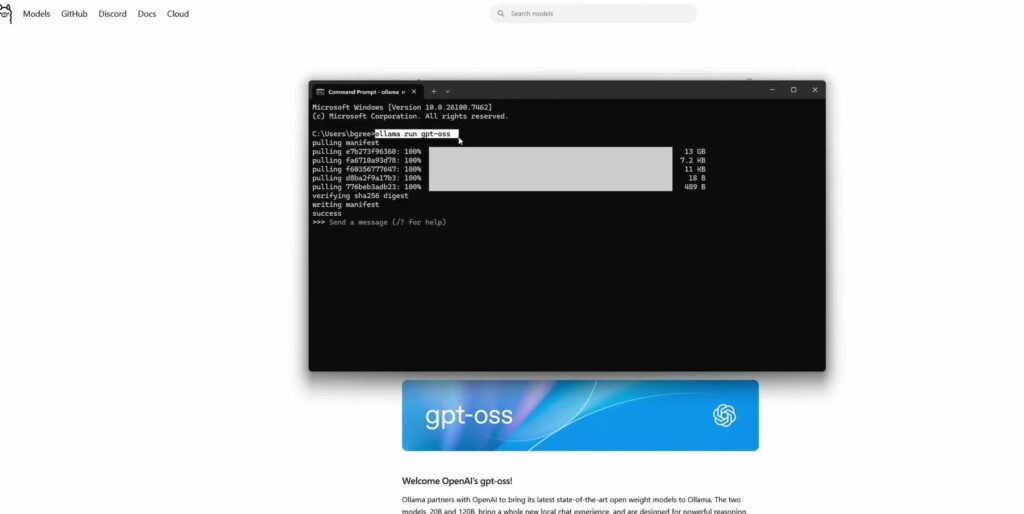
Ollama is the most accessible way to run local LLMs without dealing with Python environments, dependency management, or manual model conversion. It packages model downloading, quantization, and inference into a single application with a simple command-line interface.
Download from ollama.com — installers are available for Windows, macOS, and Linux. The Windows installer is a standard .exe; just run it and follow the prompts. No configuration needed for a basic install.
After installation, Ollama runs as a background service. You interact with it through a terminal (Command Prompt, PowerShell, or Terminal on Mac/Linux).
Step 2: Pull Your First Model
Open a terminal and run:
ollama run llama3:8b
This downloads Meta’s Llama 3 8B model (roughly 4.7GB) and starts an interactive chat session the moment the download finishes. The “8b” refers to 8 billion parameters — a reasonably capable model size that runs well on consumer hardware.
Other strong starting options:
ollama run mistral
ollama run phi3
ollama run gemma2
Each of these is a different model family with different strengths. Mistral 7B is fast and capable for general use. Phi-3 is Microsoft’s compact model, notably efficient for its size. Gemma 2 is Google’s open model, strong on reasoning tasks relative to its parameter count.
Once downloaded, you can chat directly in the terminal. Type your prompt, press Enter, and the model generates a response entirely on your machine — no internet connection required after the initial download.
[PRO TIP] Run
ollama listto see every model you’ve downloaded, andollama rm modelnameto delete ones you’re not using. Models range from 2GB to 40GB+ depending on parameter count, so managing storage matters if you’re experimenting with several.
Step 3: Add a Proper Chat Interface (Optional But Recommended)
The terminal interface works but isn’t pleasant for extended use. Open WebUI (formerly Ollama WebUI) provides a ChatGPT-style browser interface that connects to your local Ollama installation.
Installing it requires Docker. If you don’t have Docker installed, get Docker Desktop from docker.com first. Then run:
docker run -d -p 3000:8080 --add-host=host.docker.internal:host-gateway -v open-webui:/app/backend/data --name open-webui --restart always ghcr.io/open-webui/open-webui:main
After the container starts, open a browser to localhost:3000. You’ll get a full chat interface with conversation history, model switching, and file upload support — all running locally, all connected to your local Ollama instance, none of it touching the internet for the actual AI processing.
[COMMON TRAP] Open WebUI’s first-run setup asks you to create an account. This account is purely local — stored in your own Docker volume on your own machine — not a cloud account. Don’t confuse it with a service signup; no data leaves your machine through this step.
Hardware Requirements: What You Actually Need
VRAM is the limiting factor, not CPU power or system RAM, for any model you want to run at reasonable speed.
8GB VRAM (RTX 3060 Ti, RTX 4060, similar): Comfortably runs 7-8B parameter models (Llama 3 8B, Mistral 7B) at good speed. This is the practical entry point for a smooth local AI experience.
12GB VRAM (RTX 4070 Ti, RTX 3060 12GB): Same 7-8B models with more headroom, plus the ability to run some 13B models at reasonable speed.
16GB+ VRAM (RTX 4080, RTX 4090): Opens up 13B-30B parameter models at good speed, and larger context windows for processing longer documents.
No dedicated GPU (CPU-only or integrated graphics): Still functional, but expect responses to take 30 seconds to several minutes depending on model size and prompt length, rather than the few seconds you’d see with adequate VRAM. Smaller models (Phi-3 Mini, Gemma 2B) are the practical choice for CPU-only setups.
If you’re running Ollama on an NVIDIA GPU and finding performance is far below what your hardware should deliver, the guide on fixing Ollama’s NVIDIA sysmem fallback issue on Windows 11 addresses a specific Windows driver behavior that silently pushes model layers to system RAM instead of VRAM, causing dramatic slowdowns that are easy to miss and simple to fix once you know what to look for.
What You Lose Compared to Cloud AI
Honesty matters here — local AI isn’t simply “the same thing but private.” There are real capability tradeoffs:
Smaller models reason less well on complex, multi-step problems. An 8B parameter model handles straightforward questions, summarization, and conversational tasks well, but struggles with the kind of deep multi-step reasoning that larger frontier models (GPT-4, Claude, Gemini) handle more reliably.
No internet access by default. Local models can’t browse the web, check current information, or pull in real-time data unless you specifically set up tool integrations (more advanced, beyond a basic Ollama setup).
No multimodal capability in most setups. Standard Ollama text models don’t process images or audio. Some models (LLaVA, for image understanding) add this capability, but it’s a separate setup step, not automatic.
You manage updates and maintenance yourself. Cloud AI services improve continuously without any action from you. Local models stay exactly as capable as the version you downloaded until you manually pull an updated version.
For tasks where these limitations matter — complex coding assistance, research requiring current information, multimodal analysis — cloud AI remains the better tool. For private document summarization, drafting, brainstorming, and general assistance where the content itself is sensitive, local AI’s privacy guarantee outweighs the capability gap for many users.
Privacy-Specific Configuration Worth Doing
Beyond just running the model locally, a few additional steps tighten the privacy guarantee further:
Disable Ollama’s anonymous usage telemetry (if present in your version): Some versions of Ollama collect minimal anonymous usage statistics by default. Check Ollama’s settings or documentation for the current telemetry opt-out method, as this has changed across versions.
Run without internet access entirely during sensitive sessions. Since local inference doesn’t require a network connection once the model is downloaded, you can physically disconnect from Wi-Fi while working with sensitive documents, eliminating any possibility of unintended network activity from the AI application or any other background process.
Use a dedicated user account or VM for sensitive work. If you’re processing highly sensitive material, running Ollama inside an isolated virtual machine or a separate OS user account adds a layer of separation from your main system, in case any other installed application has its own data collection behavior unrelated to the AI itself.
For broader privacy practices that complement running AI locally, the guide to protecting your privacy online in 2026 covers browser, network, and account-level privacy settings that work alongside the local-AI approach described here.
Going Further: Building Custom Tools
Once comfortable with basic Ollama usage, the natural next step for many people is connecting a local model to their own documents — letting it answer questions about your own files without any of that content touching a cloud service. This is more involved (typically requiring a vector database and a retrieval-augmented generation setup) but is entirely achievable on the same local hardware. The guide to building your own LLM and what’s actually realistic covers the more advanced end of this spectrum, including what’s genuinely achievable for an individual versus what requires infrastructure beyond a personal PC.
Troubleshooting
Ollama runs but responses are extremely slow
Check whether the model is actually using your GPU. Run ollama ps while a model is loaded to see resource allocation, or check Task Manager’s GPU usage during a response. If GPU usage stays near zero while CPU spikes, the model is running on CPU only — verify your GPU drivers are current and that Ollama detected your GPU correctly during installation.
“Out of memory” errors when loading a model
The model you’re trying to run exceeds your available VRAM. Switch to a smaller parameter count (try the same model family’s smaller variant, like dropping from 13B to 7B) or a more aggressively quantized version (models tagged with “q4” or similar use less memory at a small quality cost).
Open WebUI won’t connect to Ollama
Confirm Ollama is actually running (ollama list should return your downloaded models without error) and that the Docker container’s networking is configured correctly — the --add-host=host.docker.internal:host-gateway flag in the install command is specifically there to let the containerized WebUI reach Ollama running on your host machine.
FAQ
Is local AI completely free? Yes, for the open-source models and tools described here. Ollama, Open WebUI, and the models available through Ollama’s library (Llama, Mistral, Gemma, Phi, and others) are all free to download and run. Your only cost is the electricity to run your PC and the hardware you already own.
Can I run local AI on a laptop? Yes, with the same VRAM considerations as desktop GPUs. Gaming laptops with dedicated GPUs (RTX 4060 mobile and above) handle 7-8B models reasonably well. Laptops without dedicated GPUs can still run smaller models on CPU, just more slowly.
Does local AI training data come from the same sources as ChatGPT? Open models like Llama and Mistral are trained on large internet-scale datasets similar in nature to what powers commercial models, though the specific training data, methodology, and scale differ between organizations. The privacy benefit of local AI is about where your prompts and conversations go after you type them, not about the training data the model itself was built on.
Will my local model improve over time like ChatGPT does? Not automatically. Model providers release new versions periodically (new Llama versions, updated Mistral releases, etc.) that you can manually download via ollama pull modelname:newversion, but your existing local setup doesn’t improve on its own the way a cloud service updates continuously in the background.
Is this legal for business use? Open-source models under licenses like Llama’s community license or Apache 2.0 (used by several other models) generally permit commercial use, though specific license terms vary by model and are worth checking for your particular use case, especially at larger commercial scale.
Conclusion
Running AI locally with Ollama takes about ten minutes to set up and gives you a genuinely private alternative to cloud AI services for the tasks where privacy matters most — sensitive documents, confidential business content, or simply not wanting every prompt logged on someone else’s infrastructure. The capability tradeoff is real for complex reasoning tasks, but for a large share of everyday AI use, an 8B parameter model running entirely on your own hardware handles the job well, with the guarantee that nothing you type ever leaves your machine.
